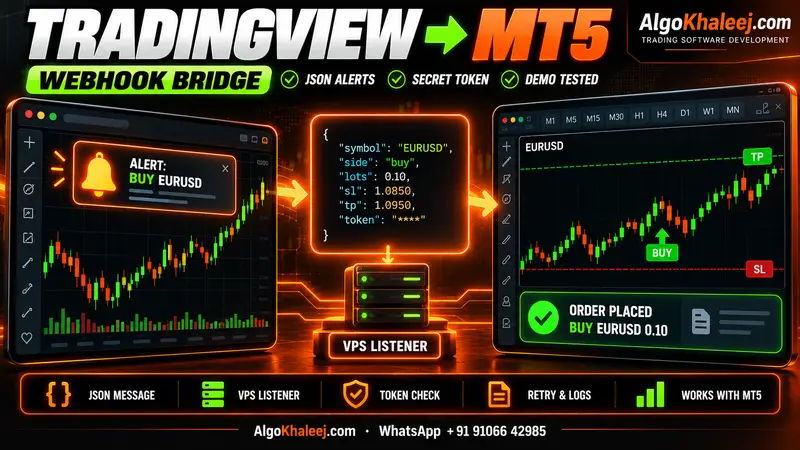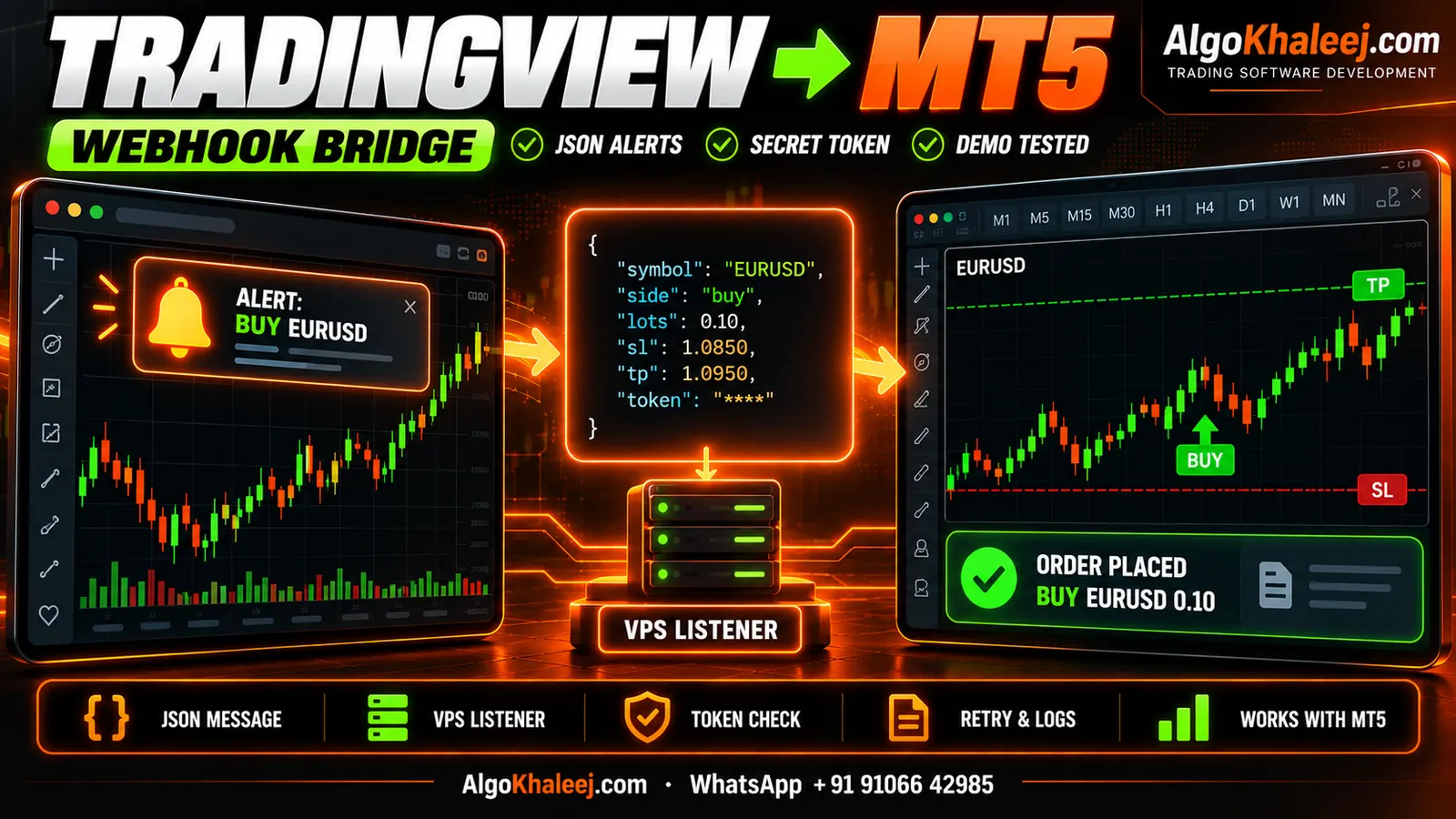
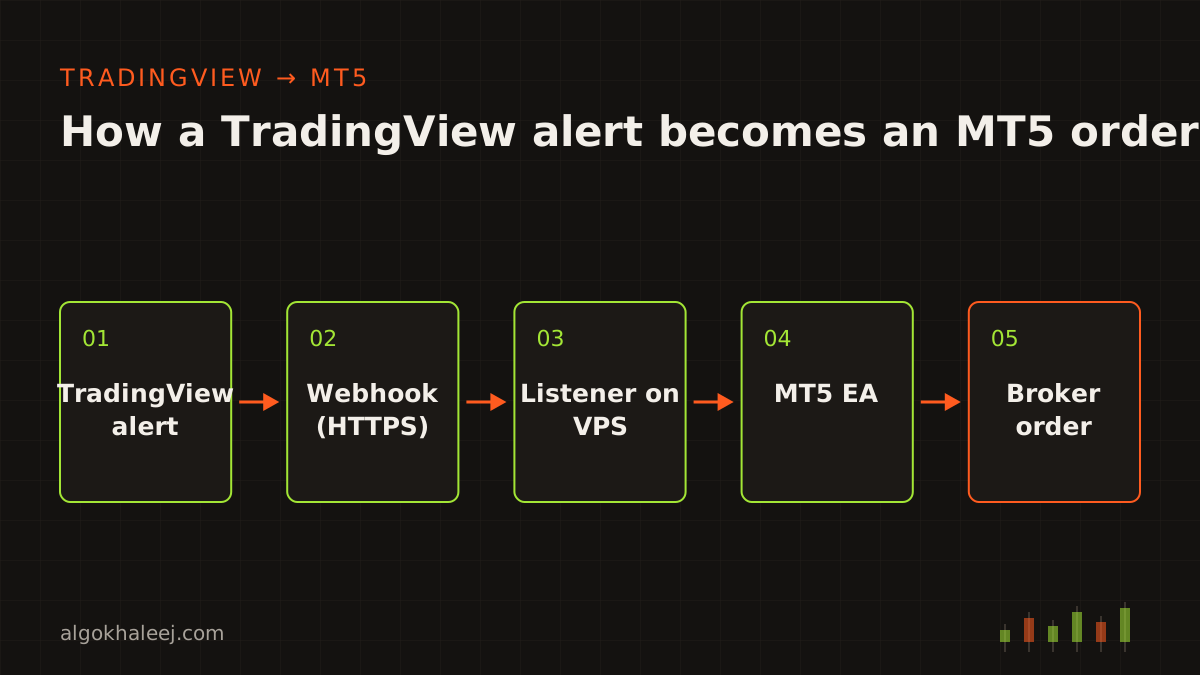
Many traders build and test their ideas on TradingView, while their broker account lives in MT5. A webhook joins the two. When an alert fires on your chart, TradingView sends its message to a web address you choose. Then a small listener receives it, and an Expert Advisor (EA) in MT5 places the trade.
How TradingView alerts to MT5 webhook setups work
Every TradingView alerts to MT5 webhook setup has four links in its chain:
- Alert: first, your Pine Script indicator or strategy fires an alert with a JSON message.
- Webhook: next, TradingView posts that message to your URL over HTTPS.
- Listener: then a small web app on your VPS checks the message and queues it.
- Expert Advisor: finally, an MT5 EA reads the queue and sends the order to your broker.
Each link can also fail on its own. So a good setup checks every step and keeps a log of it.
What you need before you start
A TradingView alerts to MT5 webhook setup needs five things:
- a paid TradingView plan, because the free plan has no webhook alerts,
- two-factor login on your TradingView account, since webhooks require it,
- a VPS or server with a public HTTPS address, usually on port 443,
- MetaTrader 5 with your broker account, plus a demo account for tests,
- an EA that reads each signal and then trades by your rules.
TradingView lists the exact rules, limits and sender IP addresses in its official guide about webhooks. Read it before you build, since these details can change.
Step 1: Write the alert message in JSON
When you create the alert, paste your listener address into the Webhook URL field. Then write the message as JSON, so the listener can read each field without guessing. Here is a simple example for a strategy alert:
{
  "token": "change-this-secret",
  "symbol": "{{ticker}}",
  "side": "{{strategy.order.action}}",
  "lots": 0.10,
  "sl_points": 300,
  "tp_points": 600,
  "id": "{{strategy.order.id}}",
  "sent": "{{timenow}}"
}
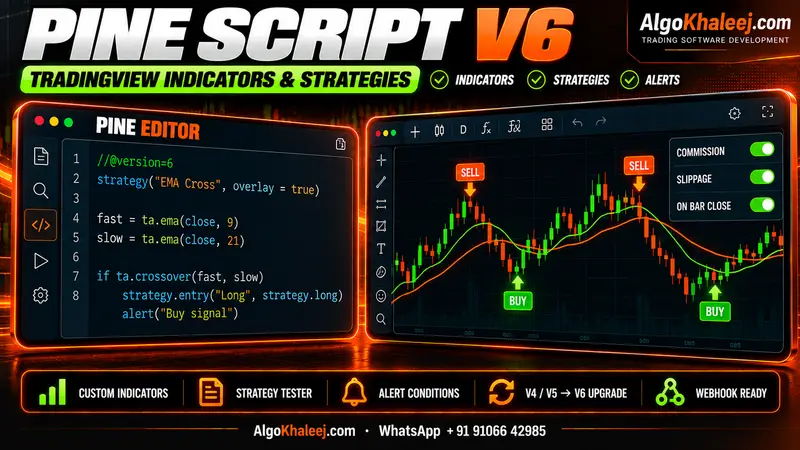
TradingView fills in the words in double braces when the alert fires. For example, {{ticker}} becomes the chart symbol, and {{strategy.order.action}} becomes buy or sell. In an indicator, you build the same JSON inside the alert() call in Pine Script.
![[SCREENSHOT: TradingView alert dialog with the Webhook URL field and a JSON message filled in]](/img/en/blog/tradingview-alerts-to-mt5-webhook/alert.svg)
Keep each message short and flat. One alert should carry one clear instruction, such as open, close or move the stop.
Step 2: Run a listener on a VPS
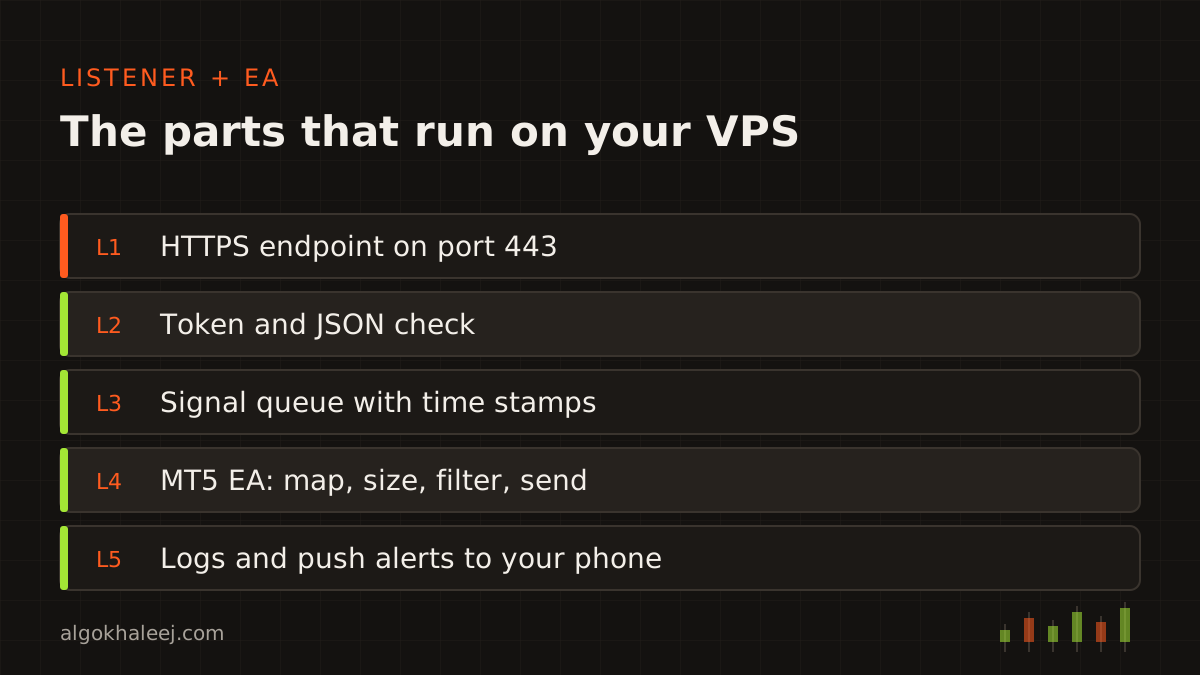
The listener is the heart of a TradingView alerts to MT5 webhook chain. It is a small web app, often written in Python, that waits for POST requests on your HTTPS address. For each request, it checks the token, reads the JSON and adds the signal to a queue.
It must also answer fast. TradingView expects a quick reply, so the listener replies at once and does the slow work after. A Windows VPS can run the listener and MT5 side by side. That keeps the path short, and both stay online when your PC is off.
Step 3: Let the MT5 EA place the trade
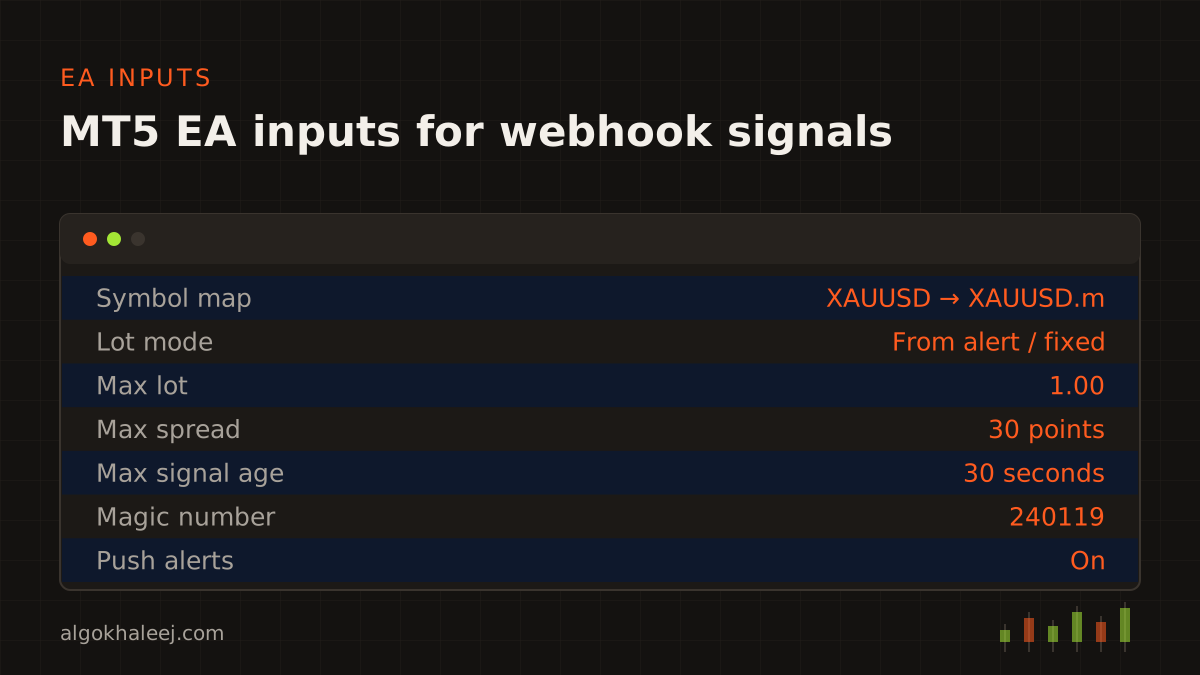
The EA checks the queue on a short timer, for example every 250 milliseconds. Then it turns each new signal into an order and writes the result to the log.
Before every order, the EA should check these points:
- Symbol: map TradingView names to your broker’s names, such as XAUUSD to XAUUSD.m.
- Lots: respect the minimum lot, the lot step and your own max lot.
- Spread: skip the trade when the spread is wider than your limit.
- Filling mode: use a mode your broker supports, otherwise the order fails.
- Account mode: netting and hedging accounts close trades differently, so the EA must know which one you use.
Secure the webhook with a token
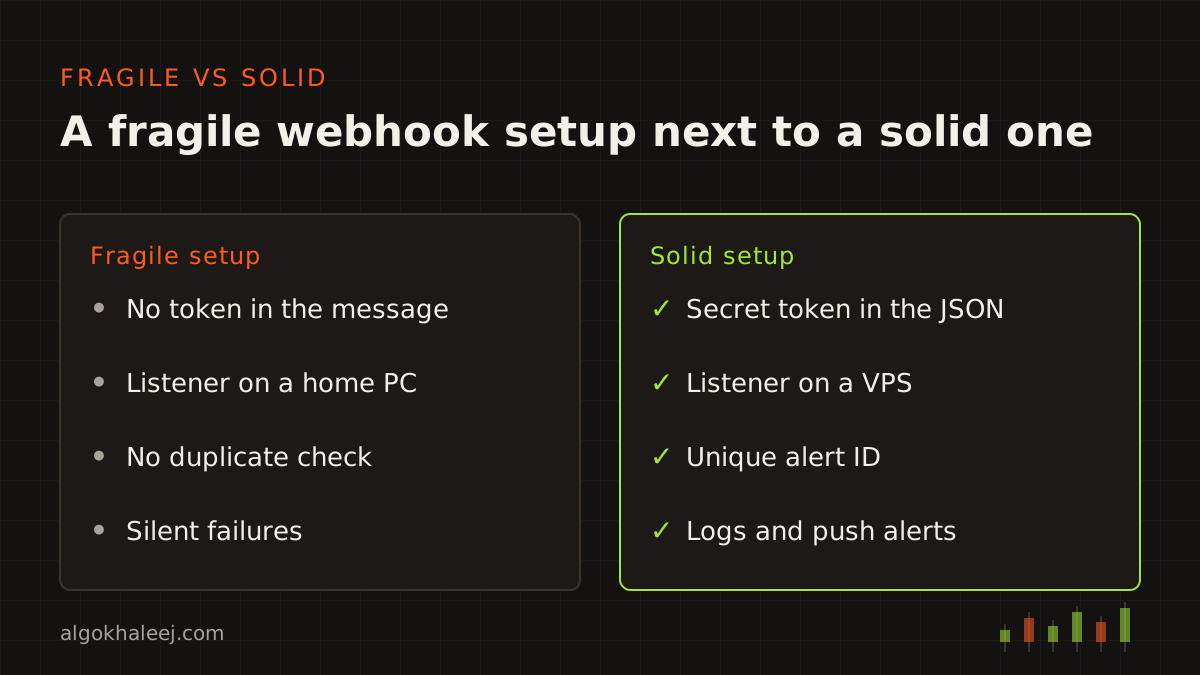
In a TradingView alerts to MT5 webhook setup, the URL is open to the whole internet. So anyone who finds it could send fake alerts to your EA. TradingView does not let you add custom headers, so the token travels inside the JSON message. Then the listener checks it on every request.
- Reject any request with a missing or wrong token.
- Use HTTPS only, so nobody can read the token on the way.
- Allow only TradingView’s published IP addresses, if your firewall supports it.
- Never put broker logins or passwords in an alert.
- Change the token whenever you share a script or a chart setup.
Latency: where the seconds go
In a TradingView alerts to MT5 webhook chain, a signal makes four hops: alert, webhook, EA timer and broker. The total delay depends on each hop, so measure it instead of guessing. For example, send {{timenow}} in the message, then log when the request arrives and when the order fills.
Also think about when the alert fires. An alert set to “once per bar close” waits for the candle to finish. That choice avoids signals that vanish mid-bar, but it trades speed for certainty.
When things fail: a simple plan
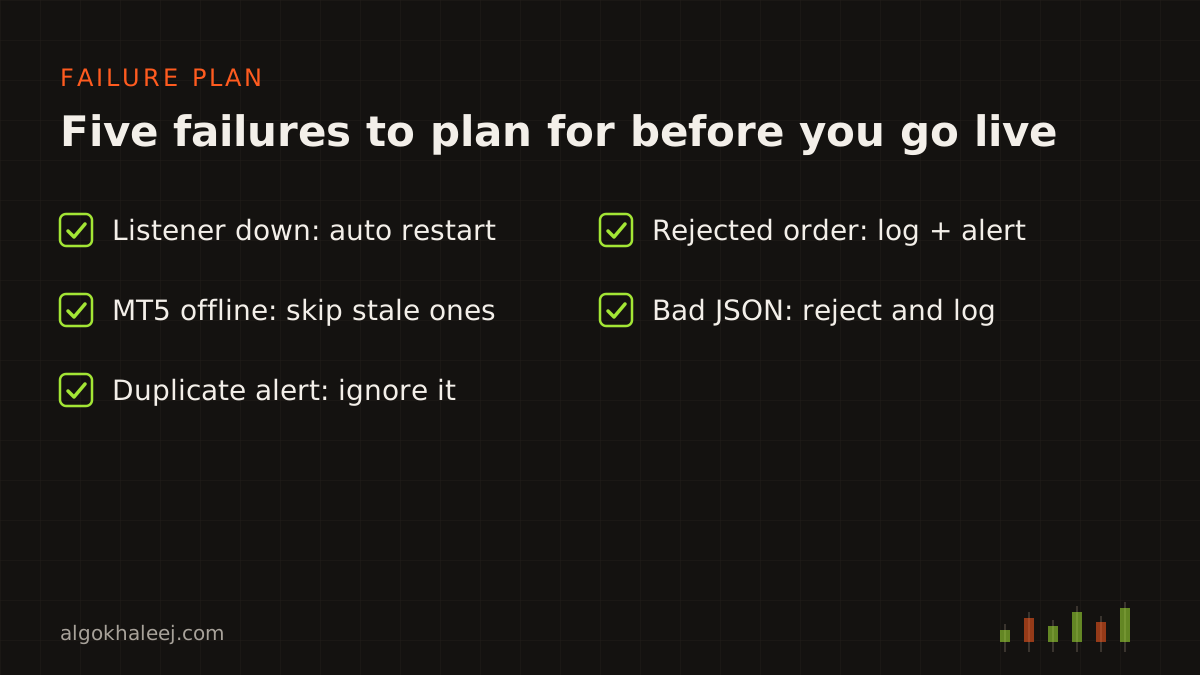
Every TradingView alerts to MT5 webhook chain breaks at some point, so plan for each failure in advance:
- Listener down: run it as a Windows service, so it restarts on its own after a crash.
- MT5 offline: the EA skips any signal older than your max age, for example 30 seconds.
- Duplicate alert: the listener ignores any alert ID it has seen before.
- Order rejected: the EA logs the broker’s reply code and then sends a push alert to your phone.
- Bad message: the listener rejects broken JSON and logs it, instead of guessing.
In short, treat a missed alert as gone for good.
Test the full chain on demo
To begin with, use a demo account and one symbol. First fire a few manual alerts, then let the strategy run for a week. Check every order against the alert behind it: side, lots, SL, TP and the time stamps.
Results will not match your TradingView backtest exactly, because data feeds, spreads and fills differ. So judge the bridge by one simple question: did each alert become the right order?
Get help with your setup
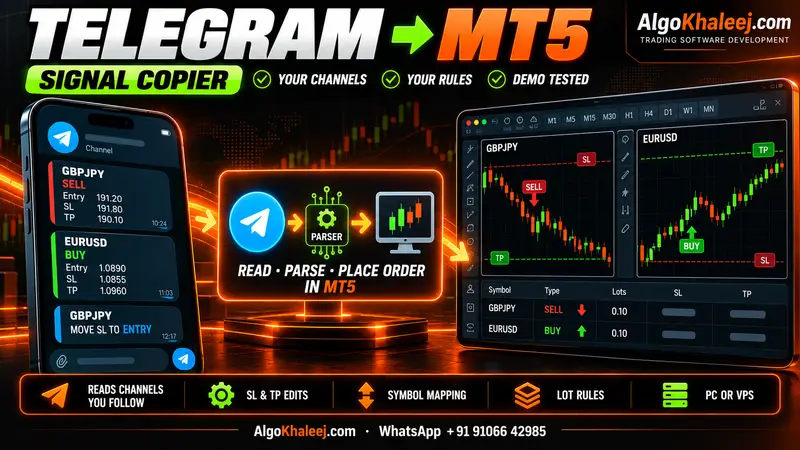
We build each part of this chain: the Pine Script alerts, the listener and the MT5 EA. See our TradingView to MT5 bridge service for features and delivery. If your strategy needs new alert code, a Pine Script developer can add clean JSON alerts to it. Later, you can also move the whole strategy into MT5 with a Pine Script to MQL5 conversion. And if your signals come from a chat instead, read how to copy Telegram signals to MT5.