Who a TradingView to MT4/MT5 copier is for
TradingView is where many traders chart, test and set alerts. Yet their account often sits with an MT4 or MT5 broker. A copier joins the two, and it suits you when you:
- build strategies in Pine Script but trade through MetaTrader,
- get alerts on your phone and miss entries while you are busy,
- run alerts on many symbols and want one place that executes them,
- hold your own accounts on both platforms and want them to follow the same alerts.
Some traders call a TradingView to MT4/MT5 copier a connector or a webhook bridge. Either way, the idea stays simple: your alert goes out, and your MT4 or MT5 terminal acts on it. The tool works only with your own TradingView alerts and your own trading accounts. We build and set up the software, while you make every trading decision.
From alert to order in five steps
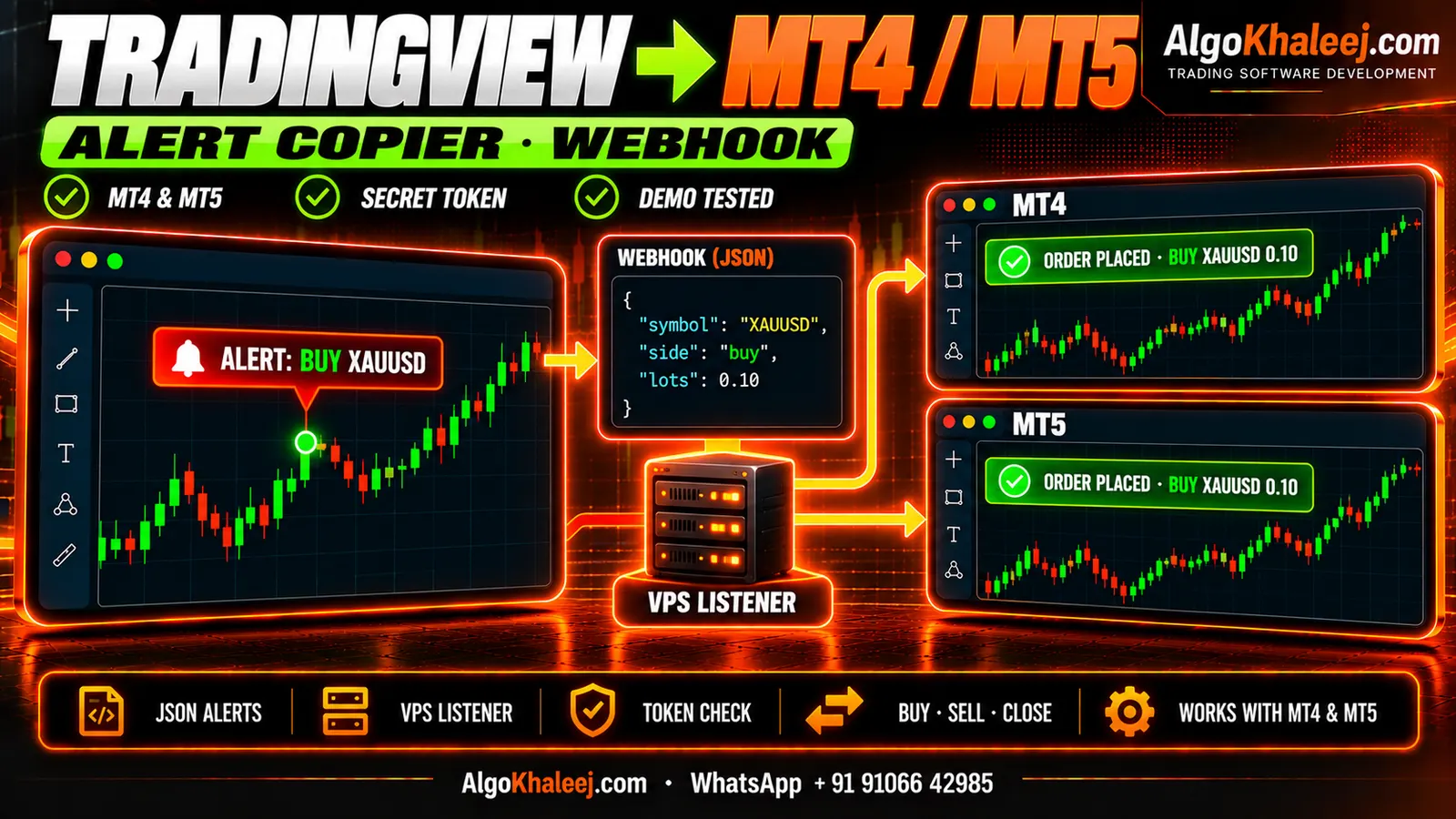
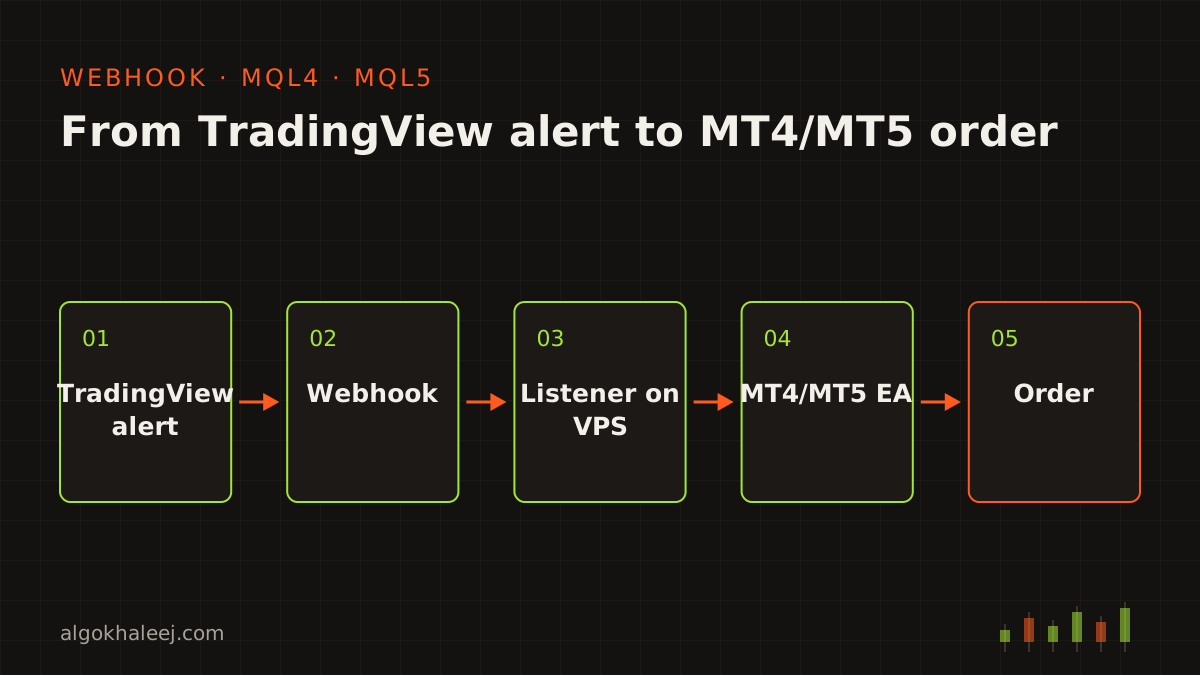
A TradingView to MT4/MT5 copier has three parts: TradingView, a small listener and an EA in your terminal. On MT4 the EA runs as MQL4 code, and on MT5 it runs as MQL5 code. Here is what happens each time an alert fires.
1. Your alert fires on TradingView
You set the alert on an indicator, a strategy or a drawing, as usual. The only change is the webhook box. It holds the listener’s URL, while the message holds a short JSON order.
2. TradingView sends a webhook
When the condition triggers, TradingView posts your message to that URL. It waits only three seconds for a reply. So the listener answers at once and does the real work afterwards.
3. The listener checks and queues it
The listener is a small program on a VPS or a cloud server. First, it checks the secret token and drops anything without it. Then it reads the JSON, logs the alert with its arrival time and adds the order to a queue.
4. Your MT4 or MT5 EA picks it up
An EA on one chart asks the listener for new orders about once a second. When the EA and the listener share a VPS, they can swap orders through a local file instead. During setup, you add the listener’s address to the allowed URLs in the terminal’s Expert Advisor options. MT4 and MT5 both offer this setting.
5. The order opens with your rules
Finally, the EA maps the symbol and works out the lot size from your risk rule. Then it sends the order with your SL and TP. It also writes the result to its own log, so you can trace every alert to its order.
The alert message format
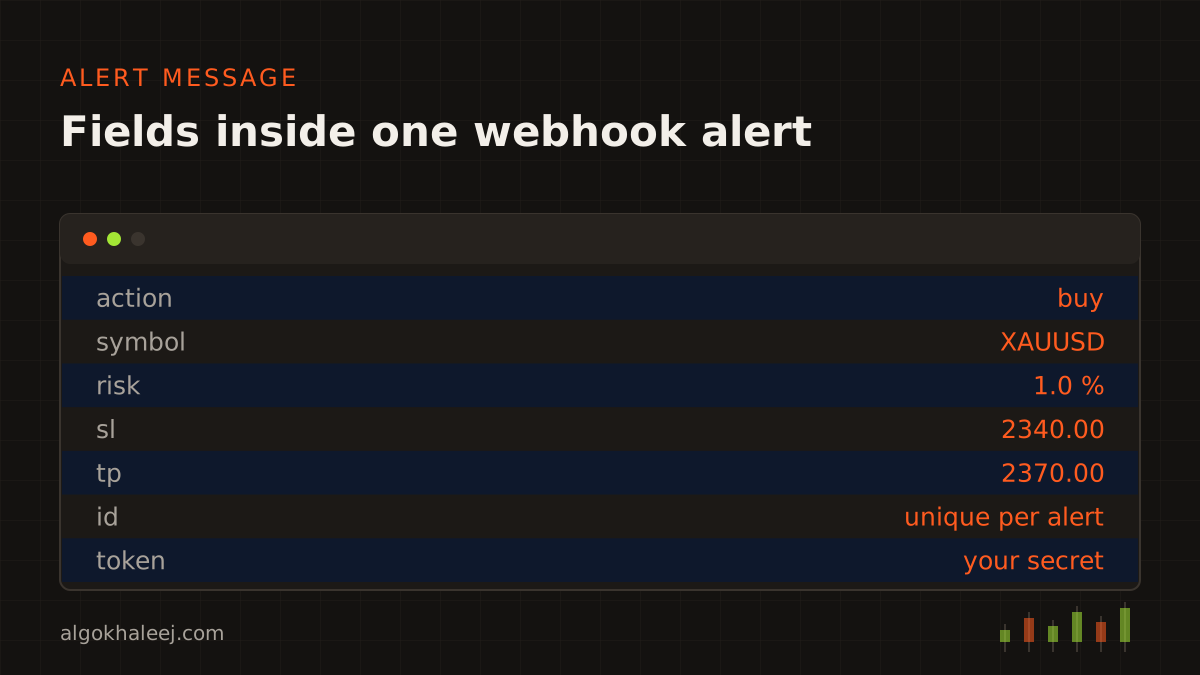
Each alert carries a short JSON message. Here is a typical one for a gold buy:
{"action": "buy", "symbol": "{{ticker}}", "risk": 1.0, "sl": 2340.0, "tp": 2370.0, "id": "{{timenow}}", "token": "your-secret"}Every field has one job:
- action: buy, sell or close, plus close half if you add partial closes,
- symbol: the TradingView ticker, which the EA maps to your broker’s name,
- risk or lots: the size, as a percent of balance or a fixed lot,
- sl and tp: prices, or distances in points if you prefer,
- id: a unique value, so a repeat never opens a second trade,
- token: a shared secret that the listener checks first.
The token is not your broker password, and it never should be. TradingView itself warns against putting passwords in webhook messages. For extra safety, the listener can also accept requests only from TradingView’s published IP addresses.
If your alerts come from a Pine Script strategy, the JSON can live inside the code through alert_message. Then each entry and exit sends the right message without manual edits.
Symbol mapping between TradingView and your broker
TradingView and your broker rarely use the same names. Gold may be XAUUSD on TradingView but XAUUSD.m or GOLD in your terminal. Index names differ even more. So the EA keeps a small mapping table that you can edit at any time. Before each order, it also checks the lot step, the minimum stop distance and whether the market is open.
When an alert fails: logs, retries and duplicates
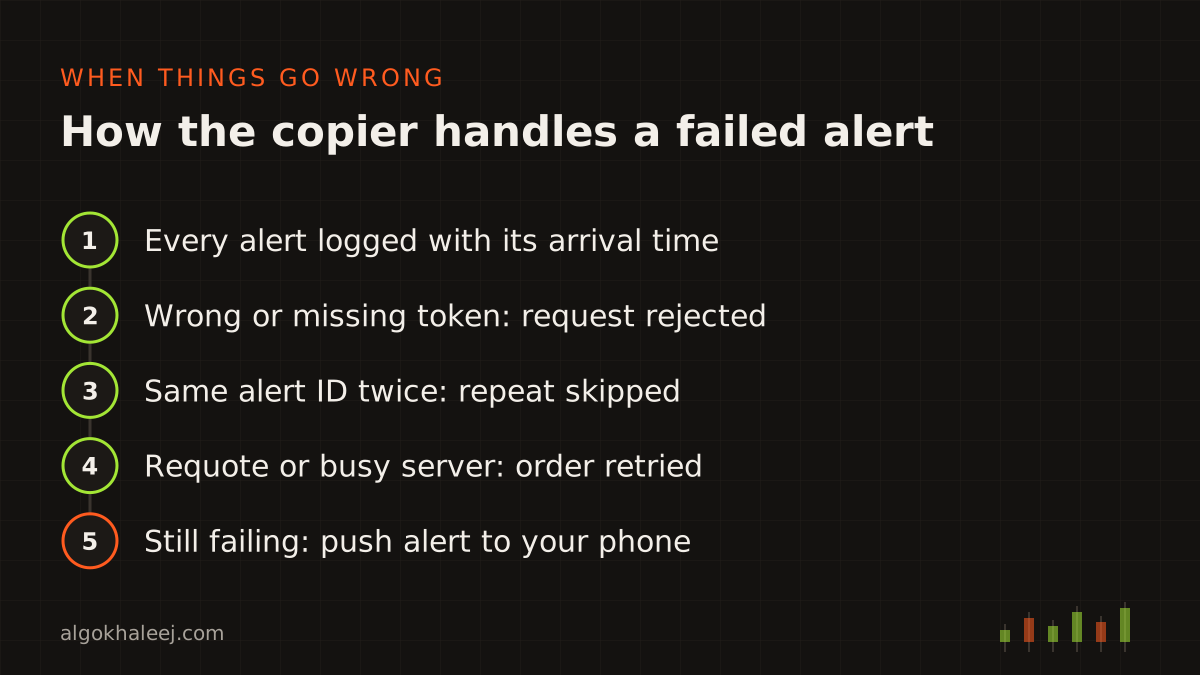
Webhooks usually arrive, but not always. TradingView notes that some may fail to reach their URL, and its alert log shows a webhook status for each one. So our TradingView to MT4/MT5 copier plans for failure from day one:
- Logs: the listener and the EA both record every alert, order and error with a timestamp.
- Retries: when the terminal rejects an order for a requote or a busy server, the EA tries again.
- Duplicate guard: each alert ID runs once, so a repeated alert never doubles your position.
- Stale alerts: anything older than your limit, for example 30 seconds, never opens a late trade.
- A note to you: if an order still fails, the EA sends a push alert so you can act by hand.
The copier cannot replay a webhook that never arrived. That is why the logs matter: together with TradingView’s alert log, they show exactly where a message stopped.
Latency: seconds, not instant
A TradingView to MT4/MT5 copier is fast, but it is not instant. TradingView needs a moment to check the alert and send it. Then the listener, the EA and your broker each add a small delay. In normal conditions, the trip from alert to order usually takes a few seconds. During busy news, alerts can arrive later, and price can move in the meantime. For this reason, the EA compares the current price with the alert price. If the gap is too wide, it skips the trade.
MT4 or MT5: one listener, two EAs
The listener in a TradingView to MT4/MT5 copier does not care which platform you trade on. On the terminal side, an MQL4 EA serves MT4 and an MQL5 EA serves MT5. Both read the same JSON, so your alerts stay the same if you ever switch. However, the two platforms handle positions a little differently. MT4 tracks every order on its own, while an MT5 account can use netting or hedging. So we test every close action on your exact account type. The standard tool runs on one platform of your choice. If you want MT4 and MT5 to follow the same alerts at once, that setup costs more, because each terminal needs its own tests.
What you need before you start
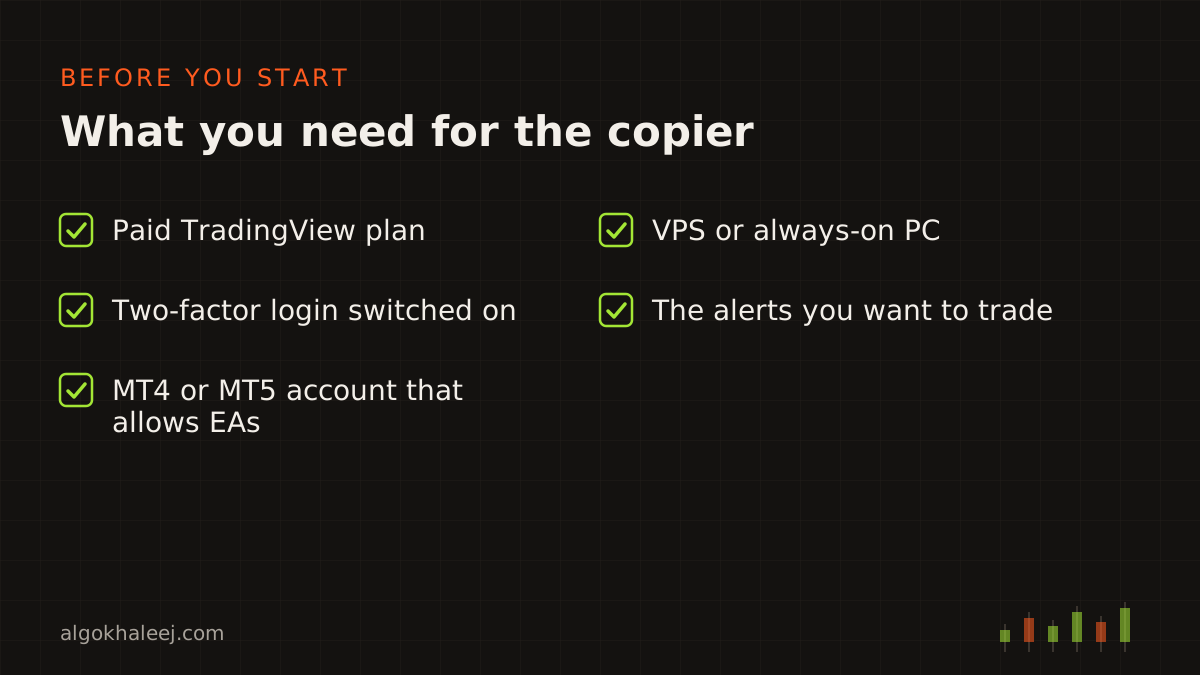
A TradingView to MT4/MT5 copier needs four things in place before the first test alert:
- a paid TradingView plan, because webhook alerts are not part of the free plan,
- two-factor login switched on in your TradingView account,
- an MT4 or MT5 account with a broker that allows EAs,
- a VPS or a PC that stays on while you trade.
Also check your broker’s terms and your local regulations before you trade live. The VPS stays in your own name, so you keep full control of it. If you want help, our website hosting and maintenance service can set up a Windows VPS for your terminal and the listener.
How we set up your TradingView to MT4/MT5 copier
We follow the same four steps as every ready tool, adapted to webhooks.
Choose. You pick your platform, MT4 or MT5, and list your alerts, symbols and risk rules. Together we settle the exact JSON for each alert, so the EA never has to guess.
Configure. The listener and the EA already exist, so this step is mostly settings. We prepare the EA for your platform: MQL4 for MT4 or MQL5 for MT5. Then we set up the webhook URL with you on your VPS.
Test. A copier has no history to replay, so this step is a live demo test. You fire real alerts from TradingView into a demo account. After that, you compare each alert with the order it opened: symbol, lot, SL, TP and time.
Go live. Finally, you receive the files, the alert templates and a setup call that connects your real alerts.
What you receive
Your TradingView to MT4/MT5 copier arrives as a complete kit:
- the compiled EA, as an .ex4 file for MT4 or an .ex5 file for MT5,
- the listener program with its setup notes,
- alert templates for buy, sell and close,
- a settings guide for symbol mapping, risk and delays,
- a setup walkthrough on your own VPS,
- [X] days of fixes after delivery,
- source code for both parts, if you chose that option.
Safe delivery
Your TradingView to MT4/MT5 copier never touches a live account until you say so. The trial EA refuses any account except your demo, and it can carry an expiry date. Once enough test alerts have turned into the right orders, you pay the balance. Then the unlocked EA replaces the trial, and the source code follows if it was part of your order.
TradingView to MT4/MT5 copier pricing
The TradingView to MT4/MT5 copier is a ready tool, and it costs $150. That price covers one symbol set with buy, sell and close actions, on MT4 or MT5. Extras cost more, such as multi-symbol routing, partial closes or both platforms at once. Hosting is separate: you rent the VPS in your own name, so you keep control of it. You get a fixed USD quote before any work starts, and our expert advisor development cost page shows typical ranges.
Tools that work well with it
Do some of your alerts arrive on Telegram instead? Our Telegram to MT4/MT5 copier turns those messages into orders on your own account, with the same risk rules. Want one alert to reach several accounts that you own? Add our MT4/MT5 trade copier. Trading a funded challenge? Then our prop firm risk manager can enforce your daily loss and drawdown limits next to the copier.
If you still need the strategy itself, our Pine Script developer service writes it with copier-ready alerts. For a longer walkthrough, read our guide to TradingView webhook alerts. TradingView also explains its own webhook rules in the official webhooks article. When you are ready, contact us with your alert list and your platform.