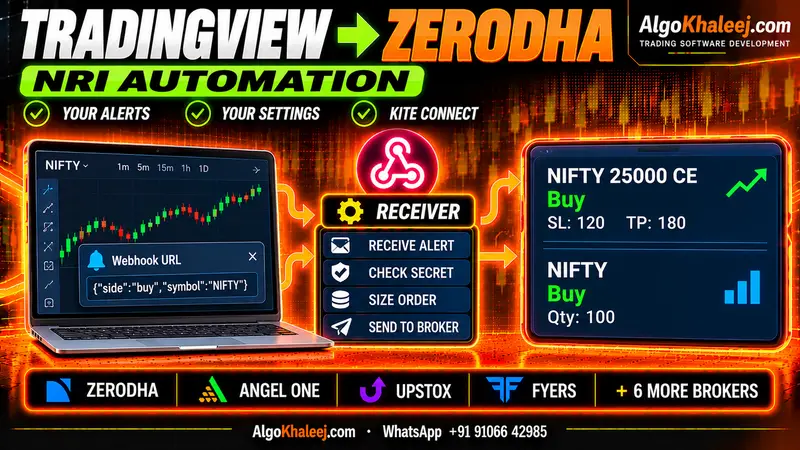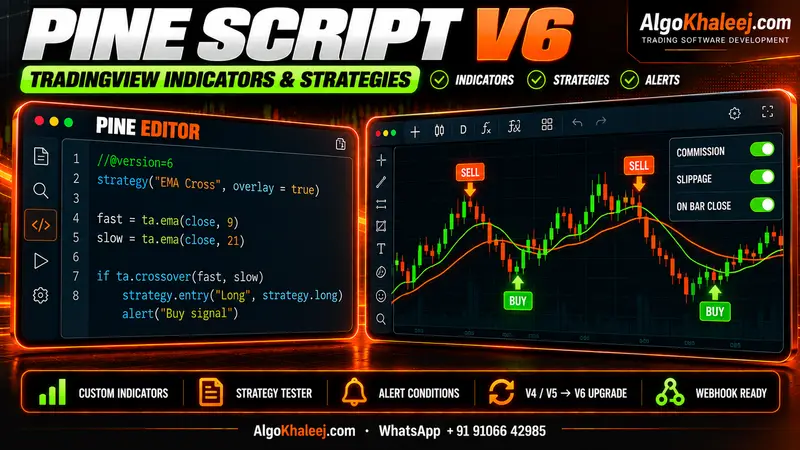
Most traders who ask us about this already have a strategy that looks good on the chart. What they lack is the path from that chart to a real order at Zerodha.
Futures and options are leveraged and high risk, and you can lose more than you put in. Check with your broker which products your account may trade before you use real money.
What Pine Script does on TradingView
Pine Script is TradingView’s own language for indicators and strategies. A strategy script simulates orders on your chart through a broker emulator, and it has no access to your Zerodha account.
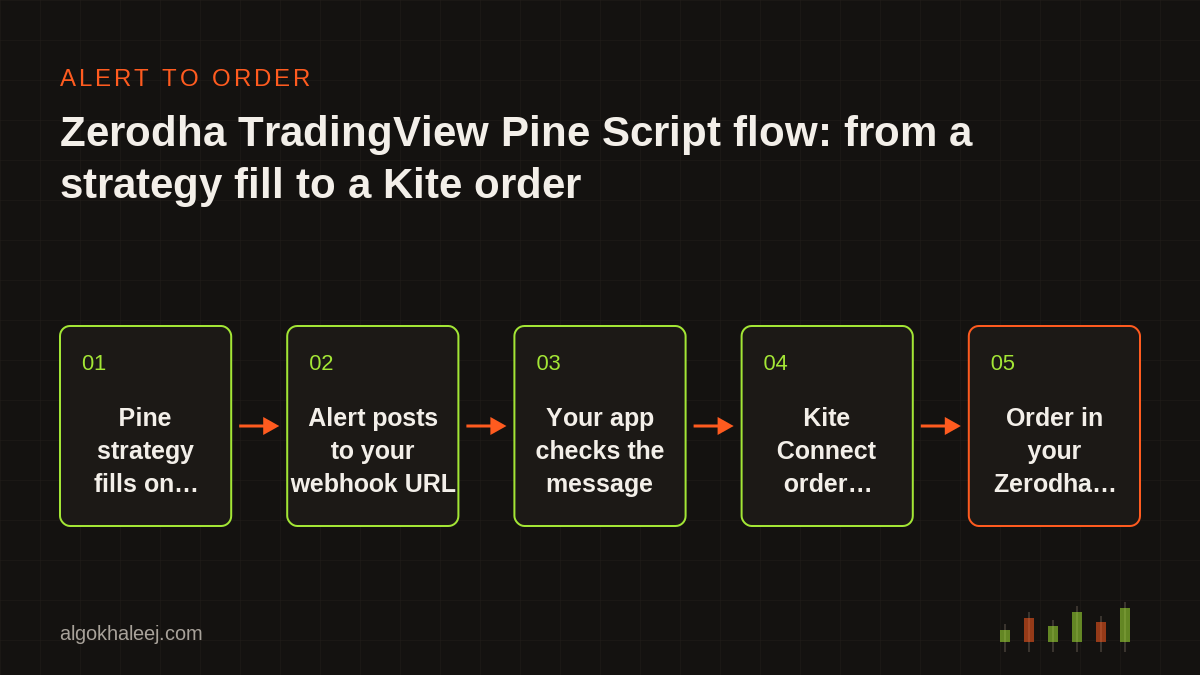
So the link between the two is an alert. TradingView’s help page says a strategy alert runs a copy of your strategy on its own servers, even with your browser closed. Each time the emulator fills one of the strategy’s orders, the alert fires.
The same page adds a few details. Orders on historical bars send nothing, and several alerts can fire inside one bar. Placeholders such as {{strategy.order.action}} and {{strategy.order.contracts}} fill in the side and size at that moment.
You can also attach your own text to each order. In Pine Script v6, the alert_message argument holds it, and the {{strategy.order.alert_message}} placeholder sends it out. Treat this as an untested sketch and match the fields to your receiving app:
//@version=6
strategy("EMA cross for Kite", overlay = true)
fast = ta.ema(close, 9)
slow = ta.ema(close, 21)
if ta.crossover(fast, slow)
    strategy.entry("Long", strategy.long, alert_message = '{"action":"BUY","symbol":"RELIANCE","qty":10}')
if ta.crossunder(fast, slow)
    strategy.close("Long", alert_message = '{"action":"EXIT","symbol":"RELIANCE"}')
How the alert reaches your app
TradingView sends the alert as a webhook, which is an HTTP POST to a URL you type into the alert settings. Webhooks are a paid plan feature, as TradingView’s announcement says. Its help page adds the other rules you need:
- Webhook alerts work only with two factor login switched on.
- The URL must use port 80 or 443, and IPv6 is not supported.
- A valid JSON message goes out as application/json, while anything else is sent as plain text.
- TradingView cancels the request if your server takes longer than three seconds.
TradingView also publishes the four IP addresses that alerts come from, so your app can refuse posts from anywhere else. Put a long secret in the URL or the message too, because anyone who learns the URL could otherwise send fake orders.
The receiving app is the part you build or buy. It reads the message, checks it, applies your limits and calls Kite Connect. Our TradingView to MT5 webhook guide covers the same receiving side for MetaTrader.
What you need on the Zerodha side
Kite Connect is Zerodha’s trading API. You create an app in its developer console, which gives you an API key and a secret. Zerodha’s API page lists a free plan and a paid one, so check which features you need there before you pay.
The harder part is the login. The Kite Connect docs describe it in three steps.
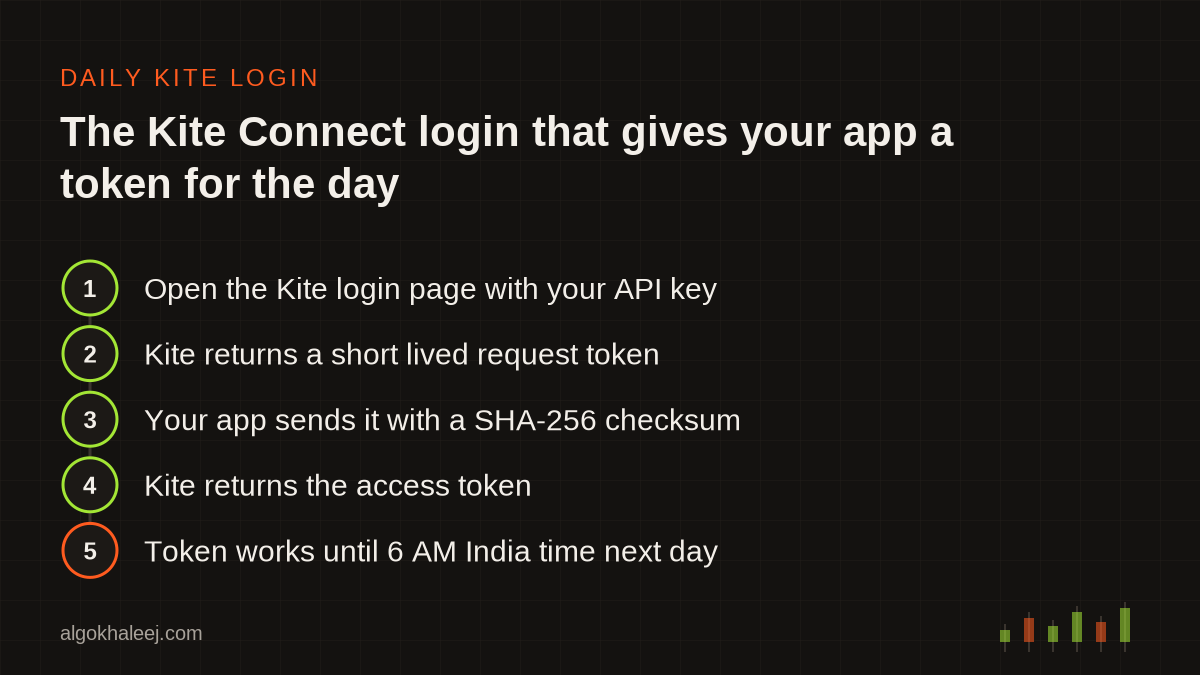
First you log in on Kite’s page with your API key, and Kite returns a request token that lasts only a few minutes. Your app then sends that token with a SHA-256 checksum of the key, the token and your secret. In return, it gets the access token used for every order.
That access token expires at 6 AM the next day, which the docs call a regulatory requirement. In Gulf time, that is 04:30 in the UAE and 03:30 in Saudi Arabia. A master logout from Kite Web also ends it early. As a result, your morning needs one Kite login before the 07:45 open in Dubai, or 06:45 in Riyadh.
The static IP rule in a Zerodha TradingView Pine Script setup
Zerodha’s support page says that from 1 April 2026 you need a static IP for API order placement. You may register up to two IPs, one primary and one optional backup, and exchange rules allow only one change per calendar week.
For Gulf traders, this rule causes more failed orders than anything else. Home and mobile lines often change their public address, and then Kite refuses orders from the new one. A small VPS with a fixed IP avoids that and keeps port 80 or 443 open.
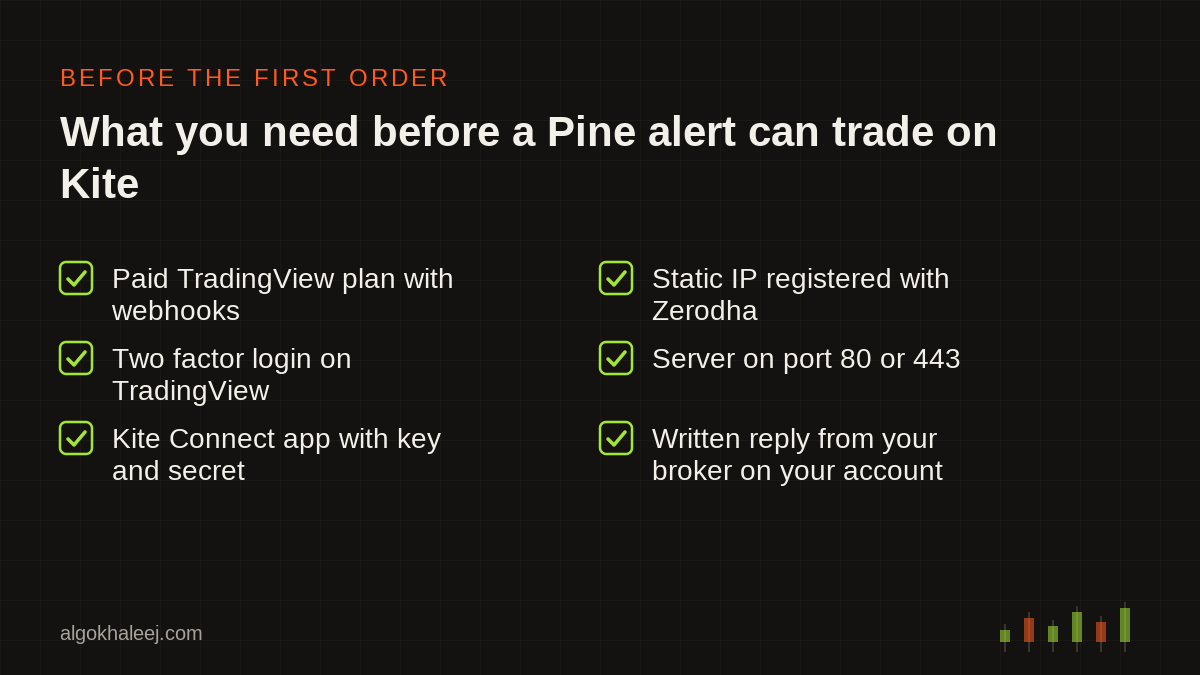
The last line matters for NRIs, because account rules differ between account types. Ask Zerodha in writing whether your account allows API orders and which segments it covers. Our guide to NRI trading in Indian stock market lists questions to send.
Timing limits between alert and order
A strategy alert fires when the emulator fills an order. Then the webhook, your app and Kite each add a little time, so on a fast candle your fill may differ from the chart price.
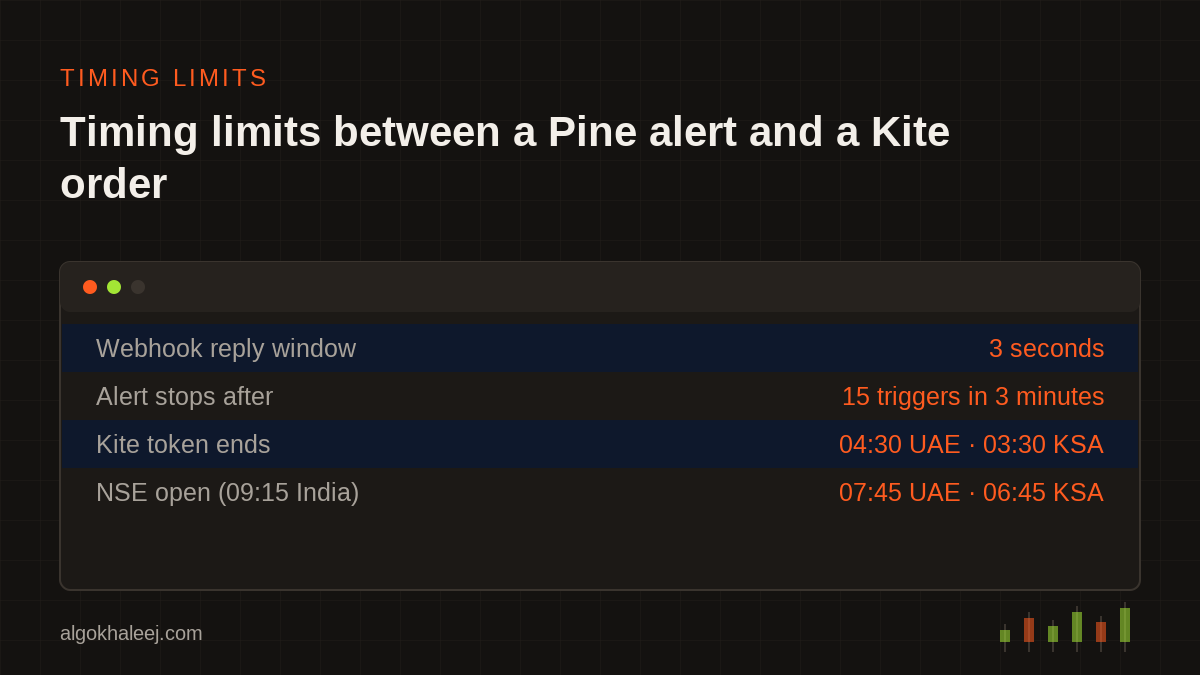
Plan for these limits:
- Your app must answer within three seconds, so it should accept the post first and place the order after.
- A coding mistake can flood alerts, and TradingView stops any alert that triggers more than 15 times in 3 minutes.
- Alerts expire on a set date, so note it in your calendar.
Also decide what happens to an alert that arrives while your app is offline. We suggest skipping a stale signal and checking the order book by hand.
Building it yourself or using a ready app
If you code, you can write the receiving app against the Kite Connect API yourself. Budget time for the parts beyond the order call, such as duplicate alerts, rejected orders, token expiry, a kill switch and readable logs.
If you would rather not, a ready Windows app is one option. Our TradingView to Zerodha automation app receives your alerts on your own PC or VPS and places them through Kite Connect or nine other Indian broker APIs. It covers NSE and BSE shares plus index and stock options, refuses futures alerts, and has a paper mode for a test day.
Either way, the Pine side has to send clean, consistent messages. If your strategy has no alert code yet, a Pine Script developer can add alert_message fields that match your app. After that, a Zerodha TradingView Pine Script setup needs one Kite login a day and a stable IP.