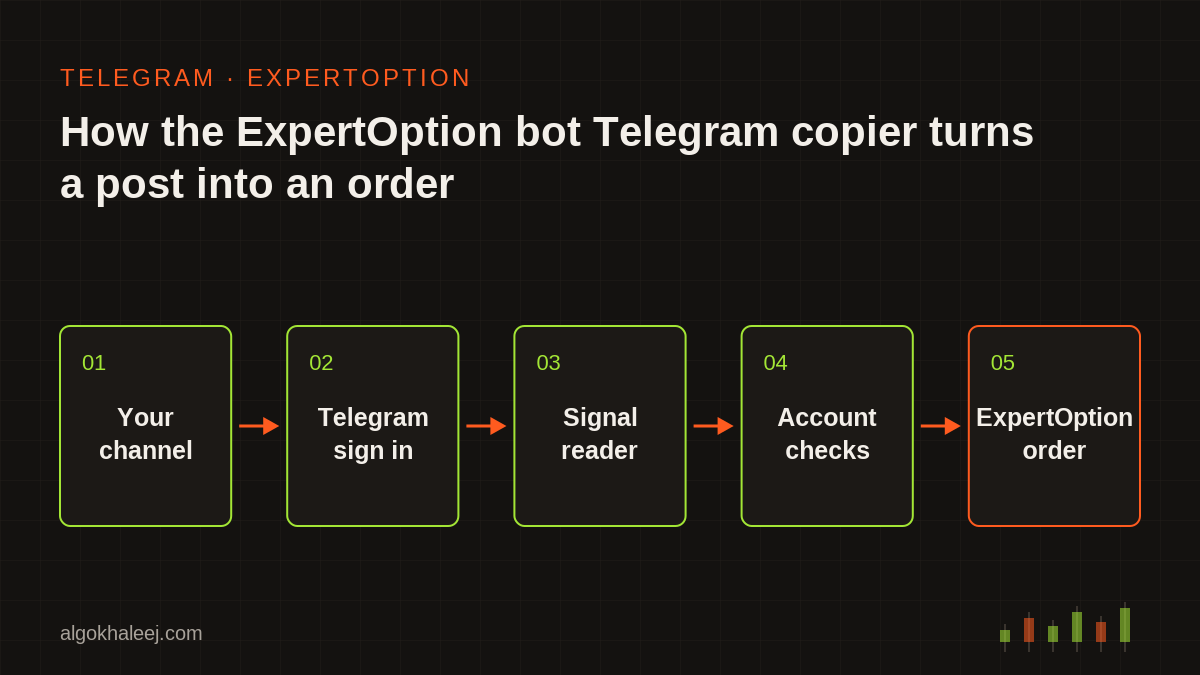
What traders ask us to solve
ExpertOption channels on Telegram often post calls with a one or two minute expiry. By the time you switch apps, find the pair and type a stake, the entry has usually passed. Gulf traders who contact us tend to raise the same few points:
- many channels post late in the evening, UAE and Saudi time,
- some send a full list of entries for the session in one message,
- a DEMO balance and a REAL balance need different stakes,
- the daily stop must still hold once a gale run starts.
We don’t sell, rank or pick signals. The app copies only the channels you switch on, onto ExpertOption accounts you own, so each trade remains your own decision.
Binary options are high risk products, and a wrong call loses its whole stake. Check that ExpertOption is licensed or allowed where you live before you trade with real money.
How the ExpertOption bot Telegram sign in works
First, you log in to Telegram with your phone number and the code Telegram sends. If your account has a two step password, Telegram asks for it too. The session then stays on your own PC.
Next, the app lists every channel, group and bot your account can open. You can search the list and filter it by type, and each source has its own monitor switch. Private channels work as well, provided your account can read them.
History never trades. Turning a channel on does not replay old posts, and anything older than 90 seconds is ignored. As a result, a call from earlier in the day cannot fire after a restart.
Reading a call: pair, book and expiry
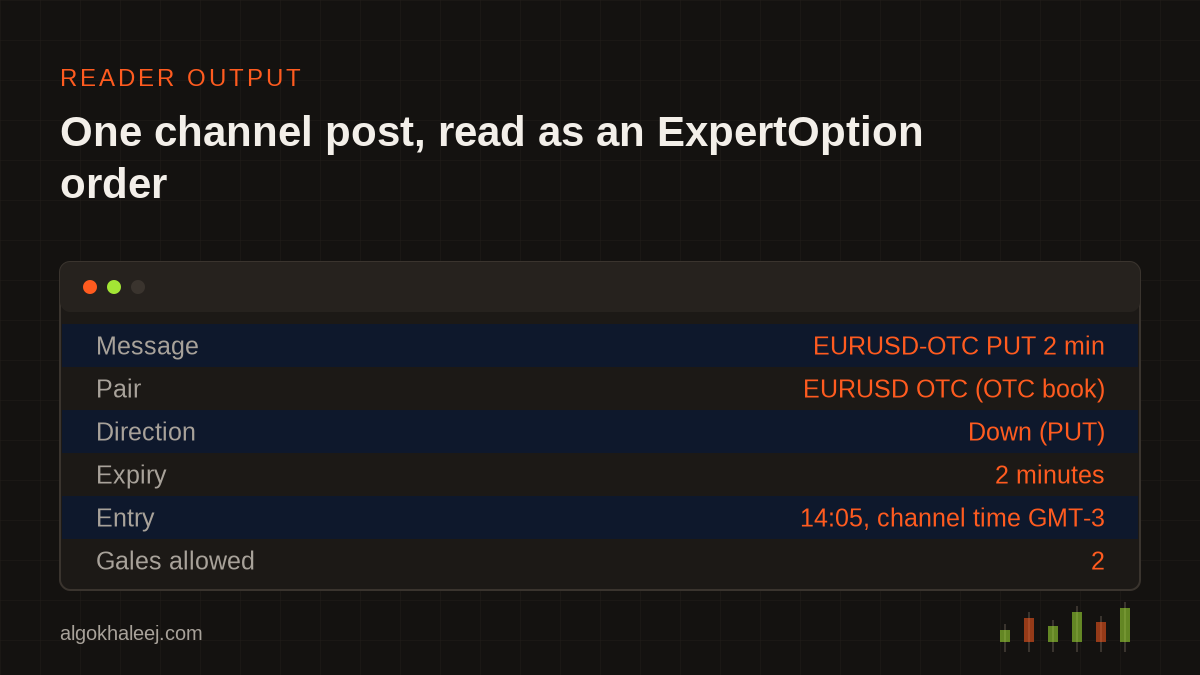
Channels write calls in their own style. Here is a typical post:
EURUSD-OTC PUT 2 min
Entry 14:05
Até 2 gales
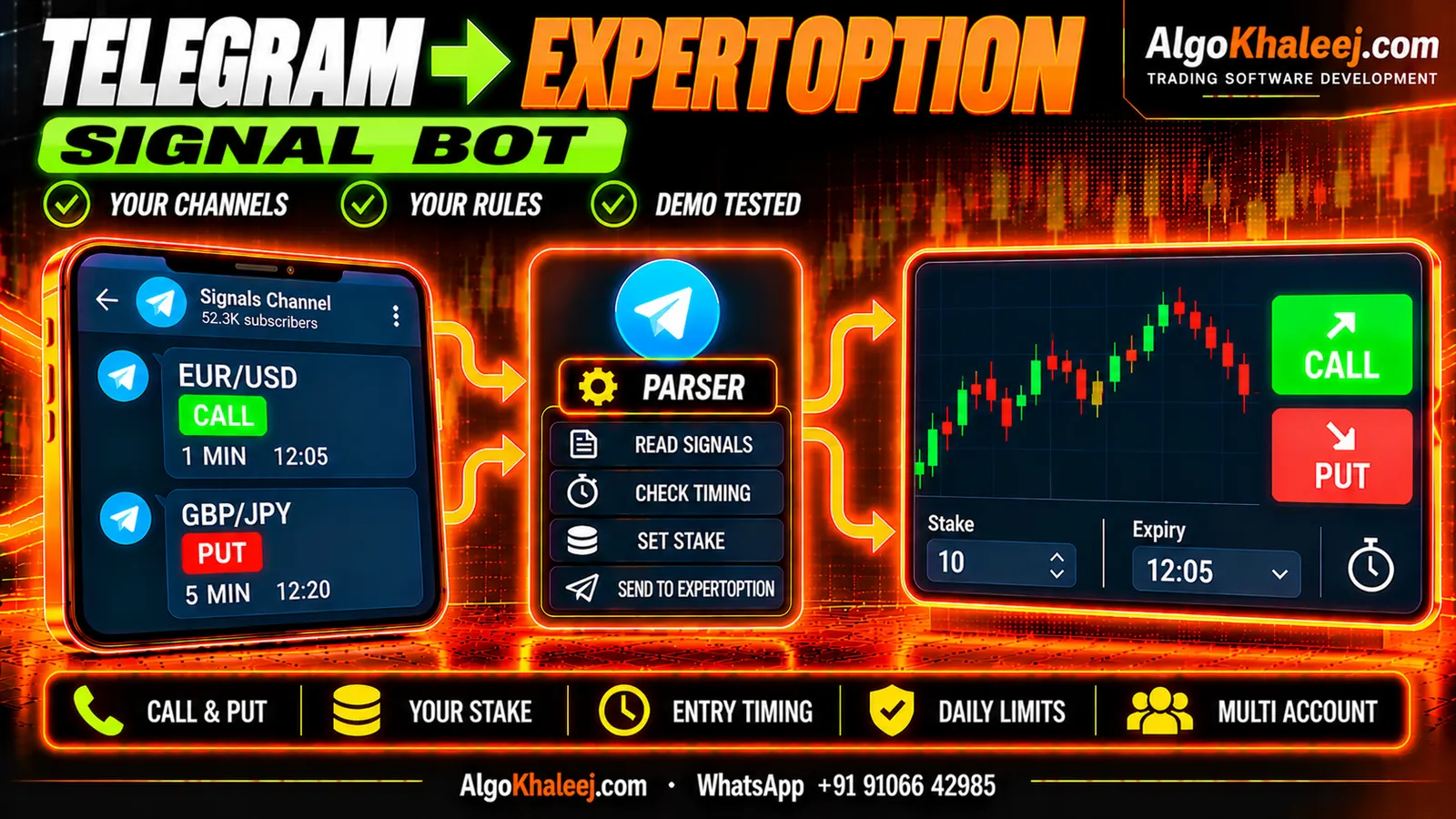
Posts with a fixed layout go to a built in reader on your PC, with no AI call. When a channel uses a layout the app hasn’t seen, it asks the AI once, and after that it reads that channel’s format by itself. Fully free text goes to ChatGPT or Groq, whichever you choose on the AI Engine page.
The reader also skips recaps of closed trades and any post without a direction or a pair. Likewise, a post with no expiry is skipped rather than guessed. Before you trust a channel, paste one of its posts into the test box, which shows the ExpertOption asset it would trade or the reason it would skip.
Signing in to ExpertOption through Chrome
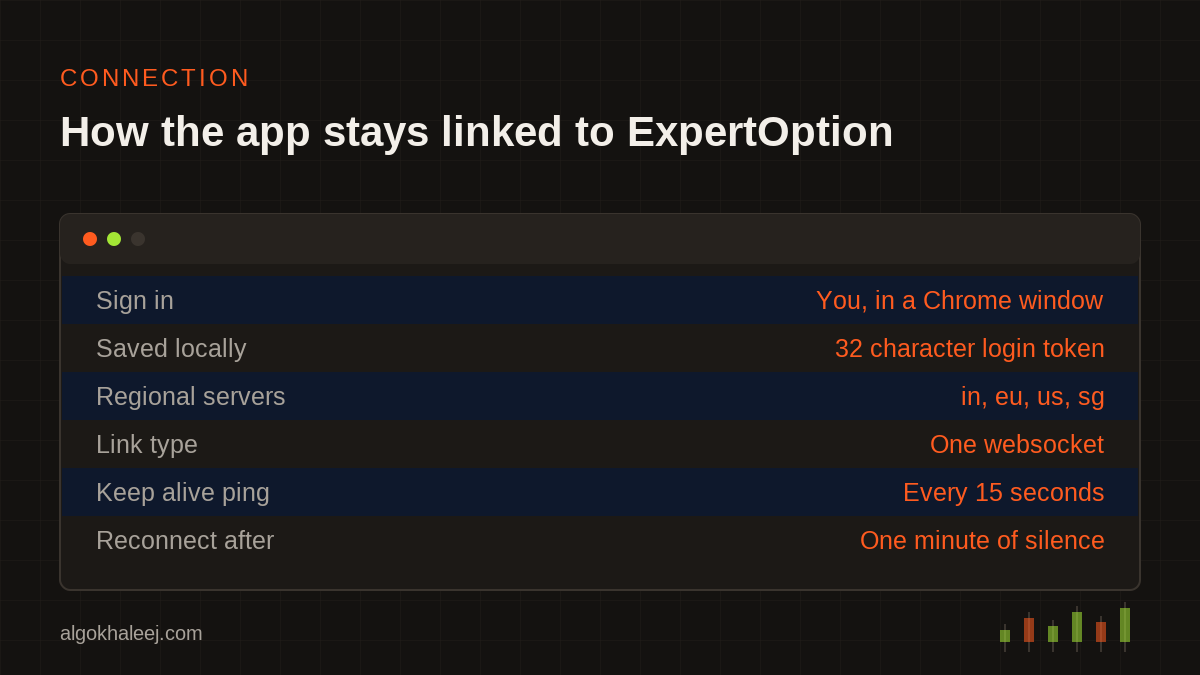
When you press Browser login, Chrome opens a separate profile for that account. You sign in there yourself, and the app then saves a login token on your machine. Because Chrome keeps each profile’s history and saved logins apart, several accounts can stay signed in side by side.
After that, the app opens one websocket to whichever ExpertOption regional server answers first, out of in, eu, us and sg. No browser stays in the loop once the link is up.
To keep the link healthy, the app sends a ping every 15 seconds. If the line goes quiet for a minute, it reconnects, and the account card shows the reason while it does.
Checks before an order goes out
Every call passes two checks first. The asset must be active on ExpertOption, and the app refreshes the live list and payouts every 15 seconds. Then each account’s own rules must allow the trade.
Those rules sit on the account, since there is no global stake:
- one trade amount, used for every call on that account,
- a daily stop loss and a daily target, each of which pauses only that account until the next day,
- the payout floor, which refuses any pair paying below your level and logs the refusal.
A binary option pays a share of the stake when the direction is right at expiry, and the stake is lost when it is wrong. For example, a $20 trade at an 85% payout returns $17 on a right call and costs $20 on a wrong one. That gap is the reason the payout floor exists. Once a call clears every check, it goes to all enabled accounts in one parallel batch.
Entry timing in UAE and Saudi time
By default, a trade opens as soon as the post arrives. You can instead switch on one of two timed modes:
- Signal’s own time holds the order until the time written in the post, read in the channel’s zone.
- Trade by minute ignores the hour and enters at the next matching minute.
Only one timed mode can be on at once. With the first mode on, a post with no time still opens straight away.
Timed orders follow ExpertOption’s server clock, not your PC’s, and each order carries that server time. In Settings you can also see how far your PC clock has drifted, with a warning once it passes two seconds.
You enter each channel’s zone as a UTC offset, and the app rejects an entry it cannot read. For example, a channel on GMT-3 posts an entry for 14:05. The app then places it at 21:05 in the UAE (UTC+4) and 20:05 in Saudi Arabia (UTC+3), so you convert nothing yourself.
Trade lists and scheduled entries
Some channels post a whole session in one message, one line per trade. Each line becomes its own scheduled signal. A list can also carry a martingale line and a zone line such as “TIME ZONE GMT-3”, and the app remembers that zone for the channel.
However, a list needs one of the timed modes. With both off, the app refuses the list rather than firing every line at once. The first line must fall within 3 hours, while later lines can run up to 12 hours ahead.
Scheduled trades sit on the Trades page and survive a restart, and each one is placed once at most. If the app was closed when a line fell due, that line is marked missed and never placed late.
Gales and the risk they add
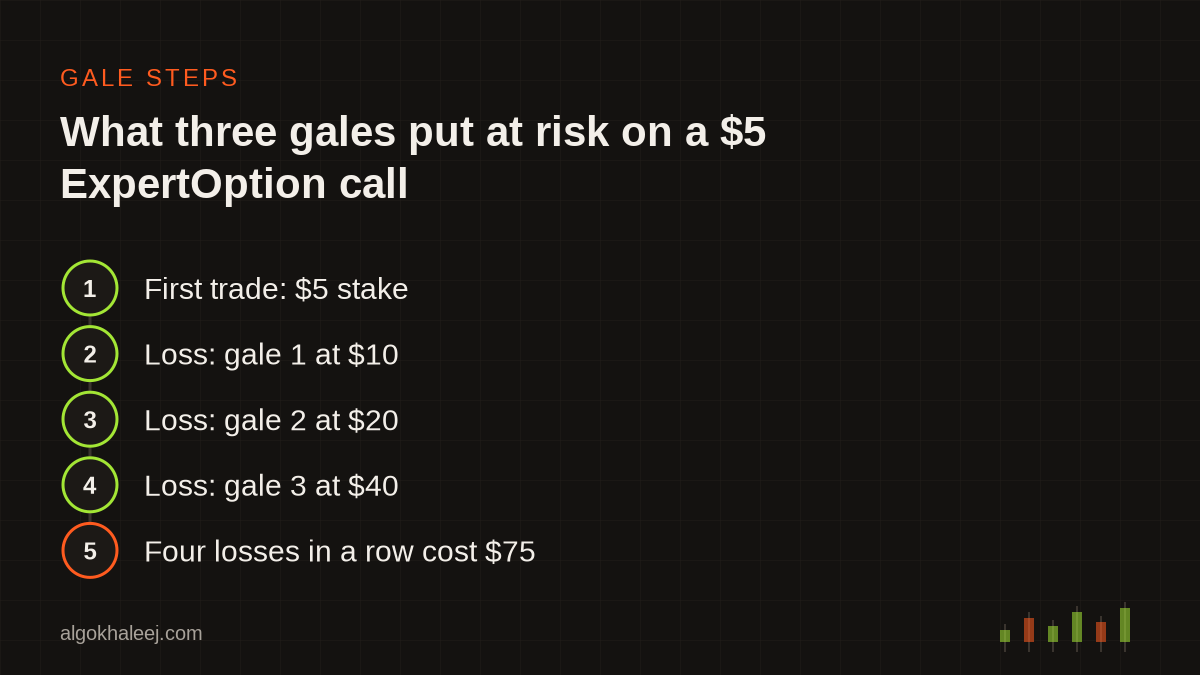
Gale is short for martingale, where a bigger stake follows a loss to win it back. You choose the gale source for each account.
By message is the default. Here the app places only the gales the post states, through lines such as “1º GALE” or “Até 2 gales”, up to nine. Each gale reopens the same pair, direction and expiry on the next expiry at double the stake, on the losing account only.
My own system ignores the post and follows your ladder after a loss. You pick Multiply, Increment or Custom lots, then set Max steps. Apply on decides the timing: Next Expiry repeats the losing trade, while Next Signal waits for the channel’s next message. You can also turn on One trade at a time. Your daily limits still apply during any gale run.
Results and the screens you watch
Each result and the new balance arrive as soon as a trade closes. We suggest you keep the ExpertOption bot Telegram setup on DEMO and read the Signal Feed for a week before any real trade. These screens help:
- Dashboard: the share of winning trades and a live signal tape.
- Signal Feed: every message, its verdict and a raw view of what the reader understood.
- Trades: ExpertOption’s own history per account, with DEMO and REAL kept apart.
- Analytics: seven days of results, top assets, top channels and the result of each gale step.
- Account cards: balance, today’s result and the last order’s latency in milliseconds.
Requirements and setup with our team
You need Windows 10 or 11 (64-bit), Google Chrome for the sign in window and outbound HTTPS. The PC must stay on while you trade, although a Windows VPS with Chrome can run it around the clock instead.
We usually set it up with you in this order:
- Install the app and sign in to Telegram.
- Switch on your channels and test a real post in the test box.
- Add an ExpertOption account and press Browser login.
- Set the stake, daily limits and gale source, and stay on DEMO.
- Start monitoring and read the Signal Feed for a week.
We are a remote team in India with no Gulf office, and we guide each step online. Pricing is on enquiry, so tell us how many accounts and channels you plan to run.
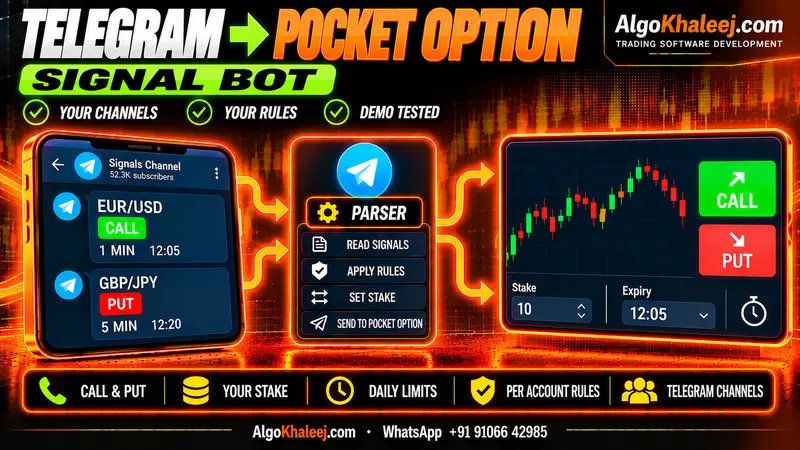
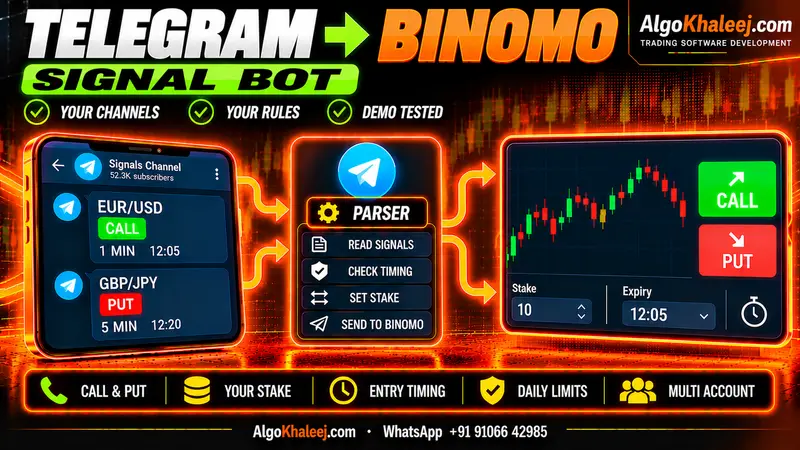
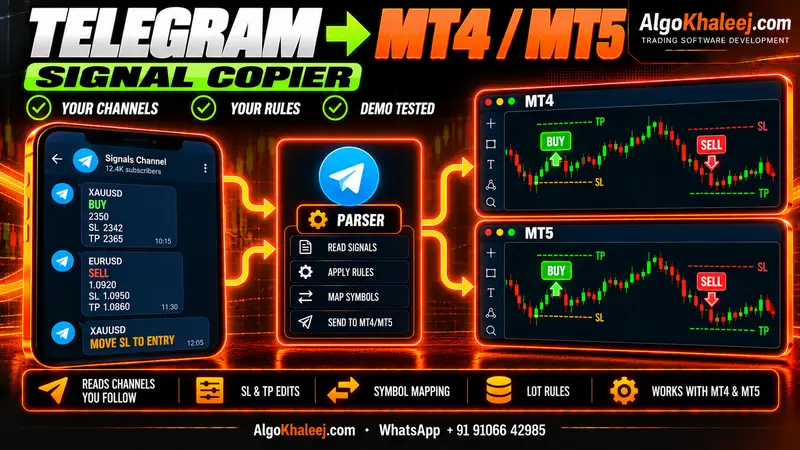
If your channel posts for another broker, the Pocket Option Telegram bot and the Binomo signal bot work the same way. Forex and gold traders on MetaTrader should look at the Telegram to MT4/MT5 copier instead. The Tools page lists every ready app, and our trading software FAQ covers common questions.