
Why traders in the Gulf ask for it
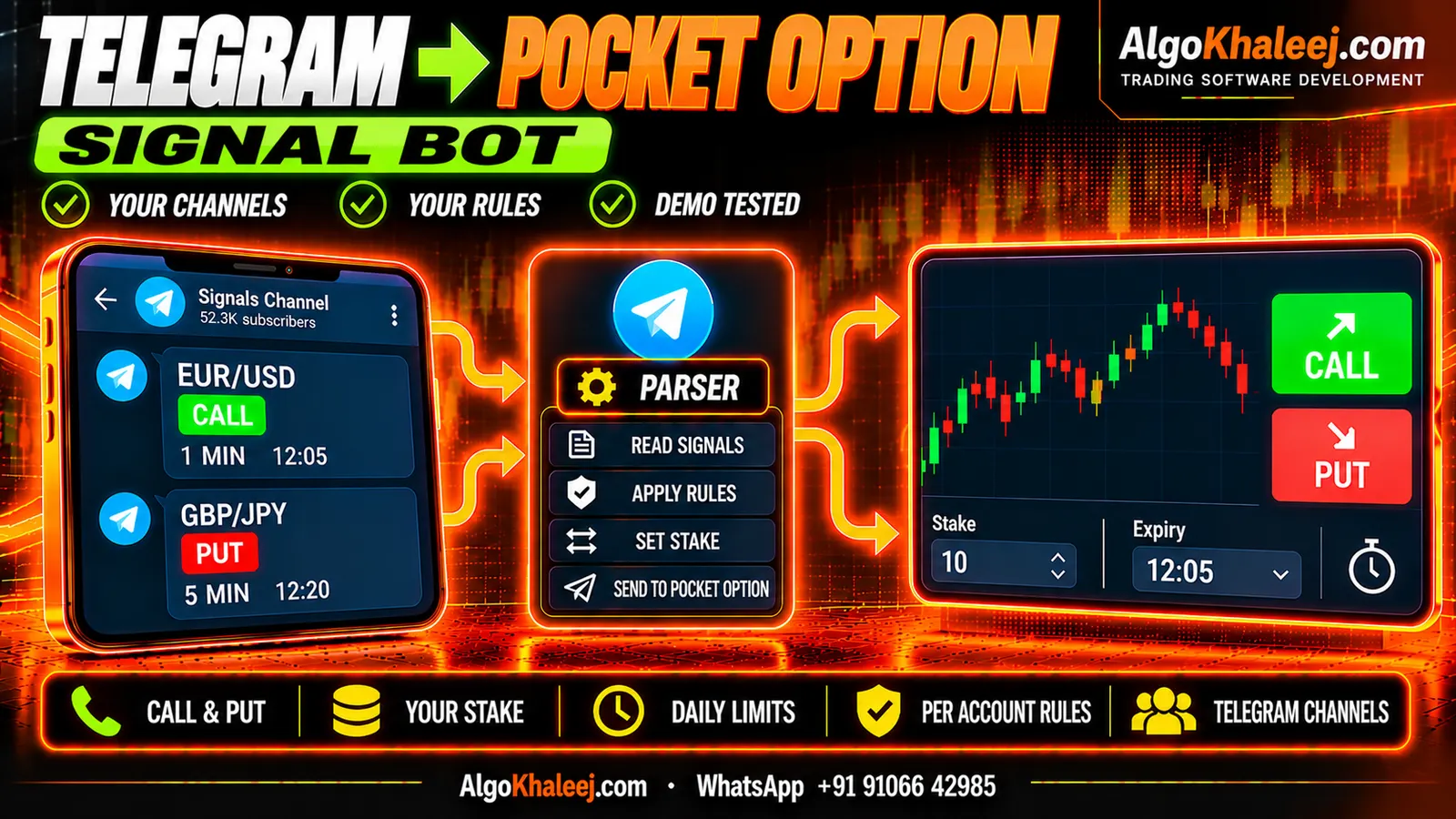
Pocket Option calls on Telegram often carry a one minute expiry. A trader who reads the message, opens the platform and types the order by hand tends to miss that minute. Many channels also post in Brazilian, Indian or Turkish hours, so the busy sessions can land late at night in Dubai or Riyadh.
People who ask us about a Pocket Option signal bot Telegram setup usually want one of these:
- calls entered on time while they sleep or work,
- a demo and a real account trading the same channel at different stakes,
- daily loss limits that a gale ladder cannot break,
- a clear record of why each message did or did not trade.
We don’t sell, rank or choose signals. The app trades only the channels you switch on, on accounts you own.
Binary options are high risk, and a losing trade costs its whole stake. Check that Pocket Option is licensed or allowed where you live before you use real money.
Connecting your Telegram account
You sign in with your phone number and the login code Telegram sends you. It is the normal user sign in from Telegram’s official API. Your channels, groups and bots then show up in one list, each with its own switch. Search and favourites help when the list is long.
Private channels work too, as long as your account can read them. The app reads forward only. Turning a channel on does not replay its history. After a restart the app skips the backlog, so an old call never trades late.
How the Pocket Option signal bot Telegram reader handles a call
Here is a call written in a fixed template, one item per line:
AUDCAD-OTC
22:15
M1
PUT
The reader turns it into one order. That means AUDCAD in the OTC market, direction down, a 60 second expiry and entry at 22:15 on the channel’s clock. The app parses calls in one fixed format on your PC, with no AI call.
Free-form posts go to the AI engine, which pulls out the pair, direction and expiry in any language and layout. Portuguese, Spanish, Turkish and Indonesian channels are common, and emojis count as well. A few rules apply to every message:
- pair names such as AUDCAD, AUD/CAD and AUDCAD-OTC map to the exact Pocket Option code,
- an OTC pair trades only when the message says OTC,
- direction can be CALL, PUT, BUY, SELL, compra or venda, or an arrow or green or red circle,
- the reader skips recaps, result posts and adverts.
Expiry is a plain duration. M1 means 60 seconds from entry and M5 means five minutes. You may also see 1 minute, 5 min, 30s or a clock time. There is no default expiry. A call without one does not trade.
On the Keywords page you can add your own CALL and PUT words. You can also add words that make the app ignore a message, such as a channel’s “result” tag.

Entry times on UAE and Saudi clocks
By default a trade waits for the time written in the call, read in that channel’s timezone. A call with no time goes in as soon as it arrives. Timed orders leave at the entry second on Pocket Option’s clock and never go out early.
Trade by minute is the second option. It takes the next matching minute on the broker’s clock and ignores the hour. That suits one minute calls from a channel whose hours sit in another zone. Leave it off for channels that already post in your own time, because it drops the hour on purpose.
Take a list that starts with “TIME ZONE GMT+5:30” and an entry at 23:30. That is 22:00 in the UAE (UTC+4) and 21:00 in Saudi Arabia (UTC+3). The app reads the zone line, uses it and remembers it for that channel. Settings also hold a signal timezone selector and a check of the broker clock against your PC clock.
Now take a Brazilian channel on GMT-3 that posts a morning list starting at 09:00. Those entries begin at 16:00 in Dubai and 15:00 in Riyadh. If you set that channel’s zone once, every later list from it lands at the right minute, even when the post itself has no zone line.
Stake, payout floor and daily limits
Every account keeps its own money rules. The same call can trade $5 on one account and $20 on another.
A daily stop loss and a daily target sit beside the stake. When the account reaches either one, only that account pauses for the rest of the day. The others keep trading. Resume paused brings it back sooner.
The payout floor is optional and set to 85% by default. It refuses any pair paying under your floor, for that account only.
Payout matters because a binary option pays a fixed share of the stake. Right at expiry, a $20 stake at 85% adds $17. Wrong at expiry, it loses $20. At 75%, the same win adds only $15, so you need more wins to cover each loss. The app logs results per account as win, loss or draw.
Gales and the balance check
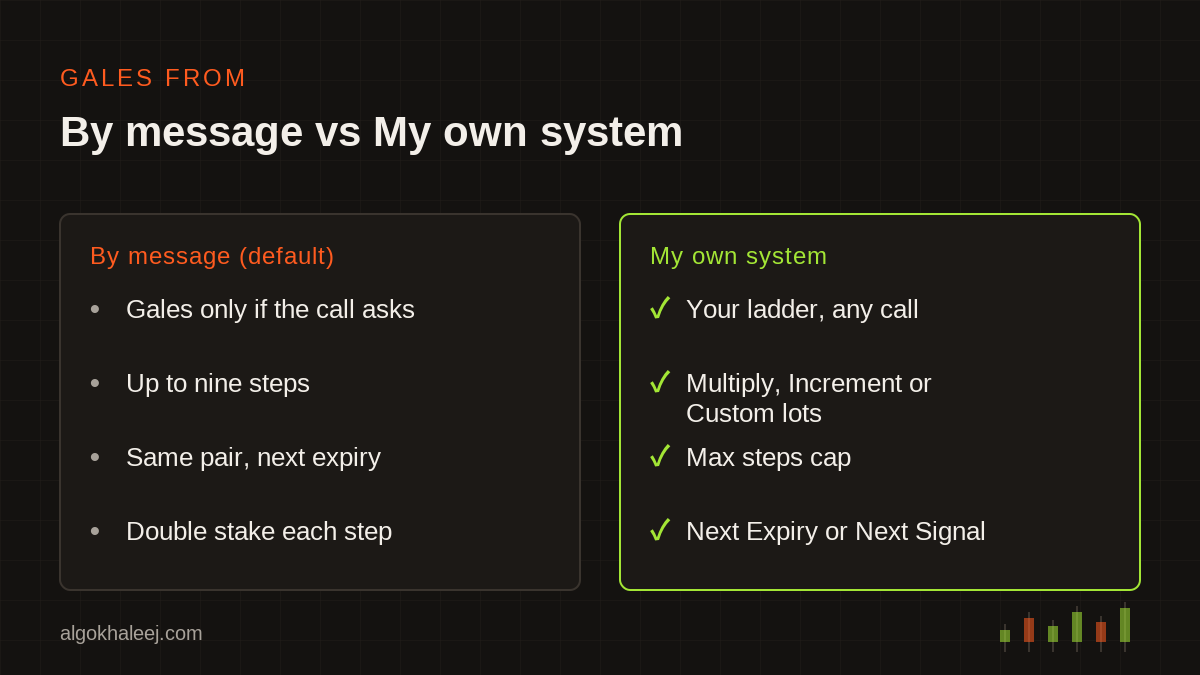
A gale (short for martingale) raises the stake after a loss to try to win it back. You pick the mode for each account under Gales from.
By message is the default. The app places only the gales the signal asks for, such as “1º GALE”, “2º GALE” or “Até 2 gales”, up to nine. After a loss, the same pair, direction and expiry reopen on the next expiry at double the stake, on the account that lost. A message with no gale line gets none.
My own system ignores what the call says and follows your ladder:
- Multiply raises the stake by a factor, for example ×2,
- Increment adds your fixed value at each step,
- Custom lots uses a list of stakes you type in.
Max steps caps the ladder. Apply on Next Expiry re-enters the same trade after a loss. Next Signal waits for the channel’s next message and puts the recovery stake on whatever pair and direction that message names. An optional one trade at a time switch finishes each trade before the account takes another signal.
The balance check before each gale
Pocket Option sends no reply to an order bigger than the balance or the per-trade maximum. So before each gale, and each rung of your own ladder, the app checks what the account can stake. Say a $5 stake has lost twice and the third step needs $20, but only $12 remains. The app sends $12 and warns you that this gale no longer covers the full loss. Gales are the riskiest setting in the app, and losses grow fast: $5, $10 and $20 already put $35 on one call.

Signal lists and scheduled entries
Some channels post a whole session in one message. The app treats it as one list and keeps the lines in order on the broker’s clock. The first line must fall within 3 hours. Later lines can run up to 12 hours ahead.
A martingale line such as “MARTINGALE ➡️ 1 STEP” applies to every line in that list. Scheduled trades show on the Trades page, survive a restart and go in once. If a line’s time passed while the app was closed, it shows as missed and never trades late.
Signing in to Pocket Option
Press Browser login on each account and sign in once in the Chrome window that opens. Clear any Cloudflare check there. The app saves the session line, cookies and user agent, so later starts connect without a sign in window. Each account gets its own Chrome profile, which keeps their logins apart.
Leave that Chrome window open while you trade, because the trading socket runs in a small page inside it. The app opens m.po.trade and also knows pocketoption.com, po.market and other mirrors. It keeps whichever domain you signed in on.
Demo and real accounts use separate servers and sessions, so switching an account from DEMO to REAL, or back again, reconnects it and picks up the matching session within a few seconds.
When the connection drops
The app notices a dead link within about 30 seconds. Retries wait 1, 2, 4 and 8 seconds and then every 15 seconds, while the account card shows “reconnecting” with the reason and any due trades wait for the link to return. If the saved session has expired, press Re-login.
When an account connects, common pairs warm up so orders leave faster. One call reaches all enabled accounts in parallel. Each of them logs its own latency in milliseconds.
Logs and analytics
The app keeps four views of what happened:
- Feed: every message with its verdict (executed, skipped or ignored) and why,
- Trades page: account, pair, direction, expiry, amount, latency, result, payout and whether it was a gale,
- Analytics: seven days of results, the share of winning trades, top pairs, top channels and results by gale step,
- Dashboard: today’s wins and losses and a live tape of incoming signals.
When a call did not trade, start with the Feed. Its reason line shows whether the message lacked an expiry, named a closed market, paid under your floor or came from a paused account. That usually tells you whether to change a keyword, a setting or nothing at all.
What you need
The Pocket Option signal bot Telegram app needs Windows 10 or 11 (64-bit), Google Chrome and outbound HTTPS access. The app trades only while it is open. For night sessions, a VPS keeps it running when your PC is off. The Chrome window then lives on the VPS too, so leave it open there in the same way. Our post on running a trading app on a VPS or a home PC covers that choice.
Setup with our team
Setting up the Pocket Option signal bot Telegram app takes five steps, and we can walk you through each one:
- Install the app and sign in to Telegram.
- Add your accounts and complete the Chrome sign in for each.
- Switch on the channels you want to copy.
- Set the stake, daily limits, payout floor and gale mode per account.
- Run on DEMO for about a week, until you have seen a losing run.
We are a remote team in India with no Gulf office. Our hours are Sunday to Friday, 10:30 to 20:30 UAE time or 09:30 to 19:30 Saudi time. Price is on enquiry, so tell us how many accounts and channels you run.
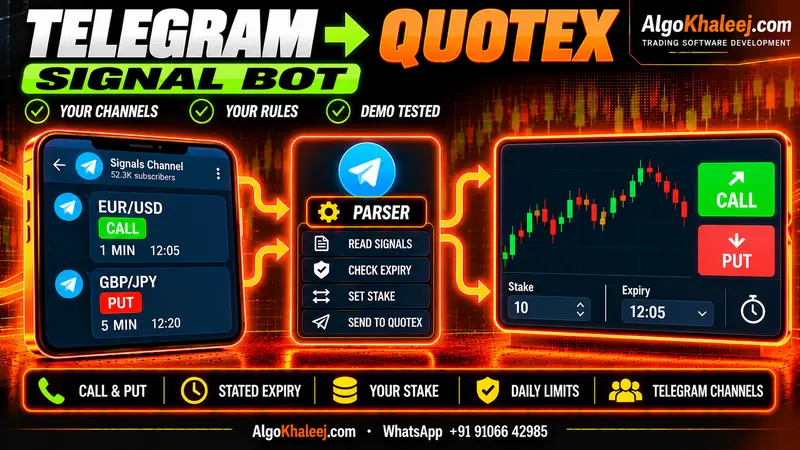
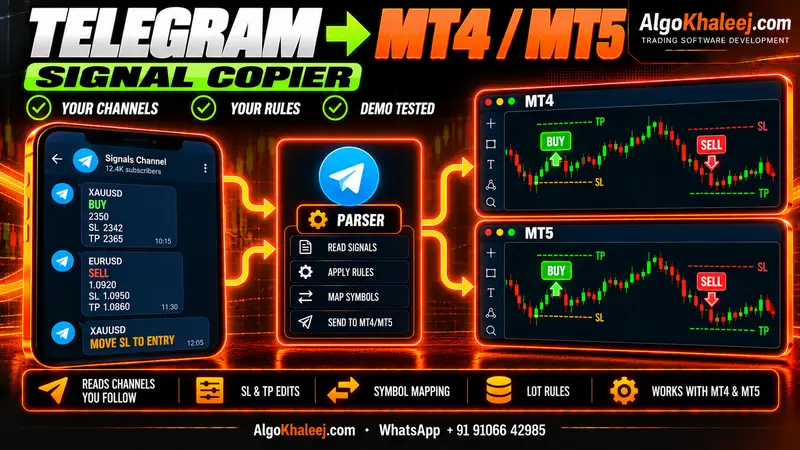
For forex and gold calls on MetaTrader, our Telegram to MT4/MT5 copier fits better. The Tools page lists our other ready apps, and the trading software FAQ answers common questions.