Without a link between your chart and your account, every alert means opening Delta, finding the contract and typing the size by hand. At 02:00 UAE time, which is 01:00 in Riyadh, that rarely happens on time.
Futures and options are high risk products. Check that Delta Exchange and the product you trade are allowed where you live.
For manual trades from the chart, check TradingView’s trading panel broker list instead. These steps cover automatic orders from alerts.
Why TradingView needs a middle step
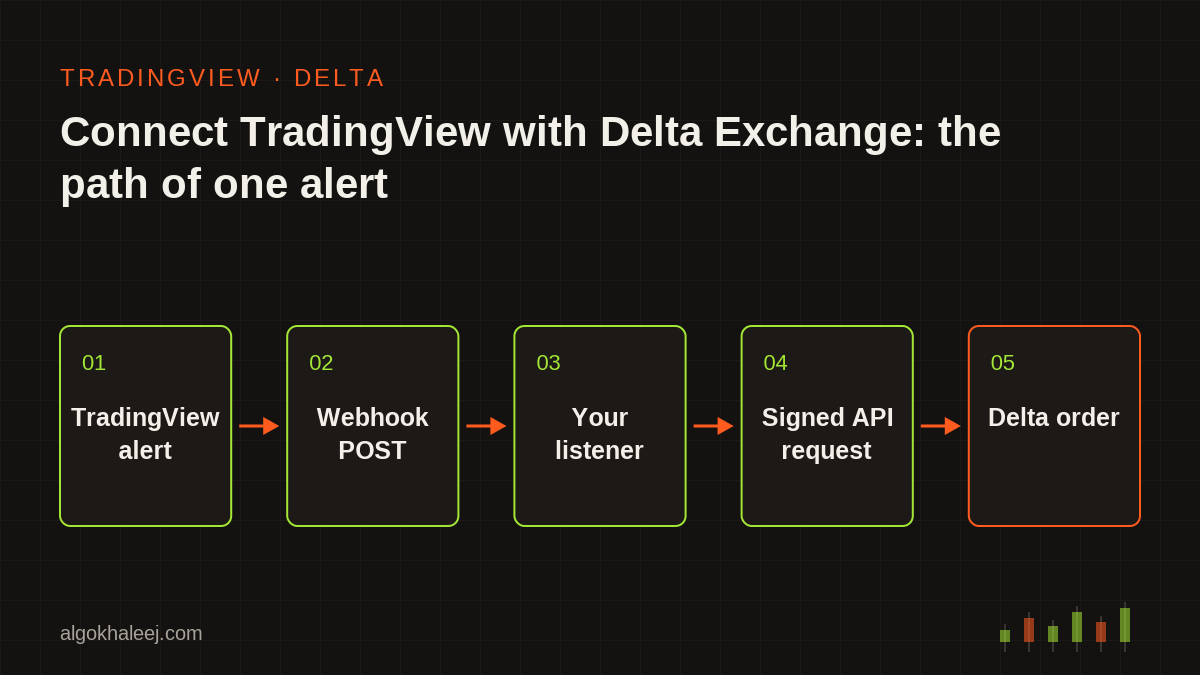
A TradingView webhook is an HTTP POST sent to an address you give it, with your alert message as the body. If the message is valid JSON, it goes out as JSON. Otherwise it goes as plain text.
Delta’s API, however, wants more than a message. Each private request must carry your API key and a signature made with your secret. TradingView cannot sign anything, and you would never paste a secret into an alert. Delta also refuses Trading calls from any IP that is not on the key’s whitelist, and TradingView’s servers are not yours to whitelist.
You need a listener, then: a small program on a machine you control that checks each alert and signs the order.
Step 1: Check what you need
Before any code, you need:
- a paid TradingView plan, since webhooks are for paid users only,
- two-factor authentication on your TradingView account, because webhook alerts require it,
- an account on Delta India or Delta Global,
- one PC or VPS with a public IPv4 address that stays on.
TradingView does not send webhooks over IPv6, and it accepts only ports 80 and 443. The listener must answer on one of those ports, and your firewall must let that traffic through.
Step 2: Create a Delta API key for the listener
Delta’s API docs list two permissions for a key: Read Data and Trading. Placing orders, closing positions and changing leverage need Trading.
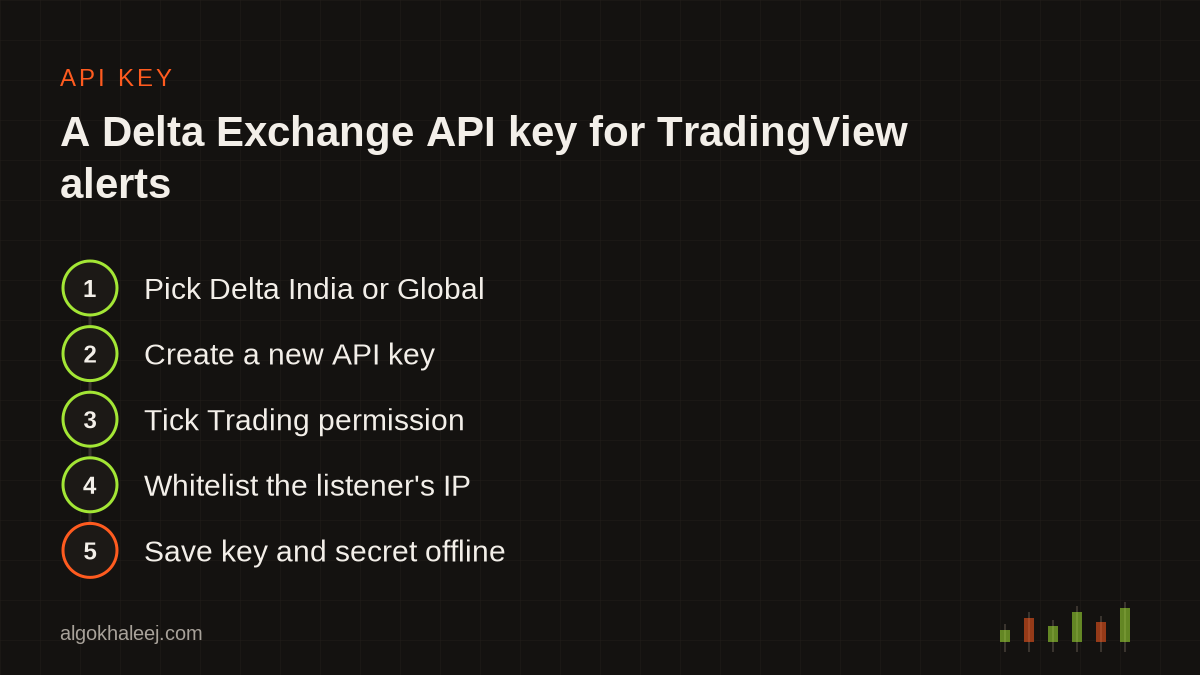
A key with Trading permission must have at least one whitelisted IP. Enter the public IP of the machine that runs your listener, not the one on your phone or at your office. Then keep the key and secret somewhere offline, because the secret is what signs your orders.
Delta’s docs add that a key made on Delta India works only with Delta India’s API, and a key made on the demo account works only on the testnet. Create a demo key now as well, since Step 6 needs it.
Step 3: Set up the webhook listener
TradingView publishes the four IP addresses its webhooks come from, and a listener can drop anything else. A long random token in the URL and a secret word in the message add two more locks. Then a stranger who finds your IP still cannot trade your account.
TradingView also cancels a webhook request when the server takes longer than three seconds to answer. A good listener therefore replies at once and places the order straight after. It should also log every alert, with the reason when no order went out.
Step 4: Write the alert message
A simple message for a perpetual futures strategy could look like this:
{"key": "your-secret-word", "symbol": "{{ticker}}", "action": "{{strategy.order.action}}", "qty": 5, "sl_pct": 1.5, "tp_pct": 3}When the alert fires, {{ticker}} becomes the chart symbol, and in a strategy alert {{strategy.order.action}} becomes buy or sell. As a result, one alert can handle both directions.
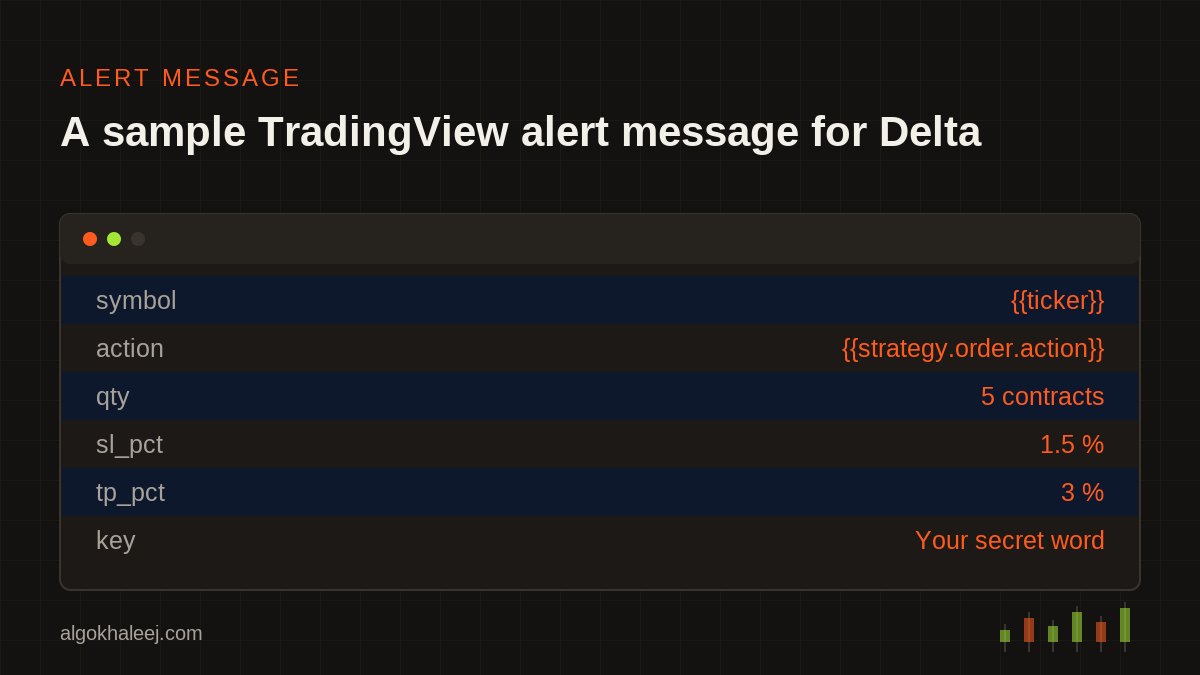
Check that your chart symbol matches the contract name Delta uses. If it does not, the listener needs a lookup table. Also keep leverage out of the message. Set it on the Delta account or in the listener, so one wrong alert cannot raise it.
On perpetual futures, the stop and target usually go on as a bracket order. Delta’s docs say a bracket closes the entire position, and only one is allowed per open position on a contract. A listener that adds to a position must update the existing bracket, because Delta will not accept a second one.
Step 5: Create the alert in TradingView
Open the alert dialog on your chart or strategy and set the condition. Next, paste your message into the Message box. Under Notifications, tick Webhook URL and paste the listener’s full address, token included.
“Once per bar close” fires only on a finished candle, while “Once per bar” can fire mid candle on a signal that later disappears. Give it a clear name too, because you will search the logs for it.
Step 6: Test on the Delta testnet
Point the listener at the testnet with your demo key, and let a few days of alerts run through it. Compare each demo order with the alert behind it: contract, side, size, stop and target.
Then send a broken message, a wrong secret word and an alert for a symbol you have not mapped. Each one should produce no order and a clear line in the log. Only after that should the live key and the live API replace the demo ones.
Step 7: Keep the link running on Gulf time
Delta futures trade around the clock, and many strategies fire at night. A home PC that sleeps at midnight misses those alerts.
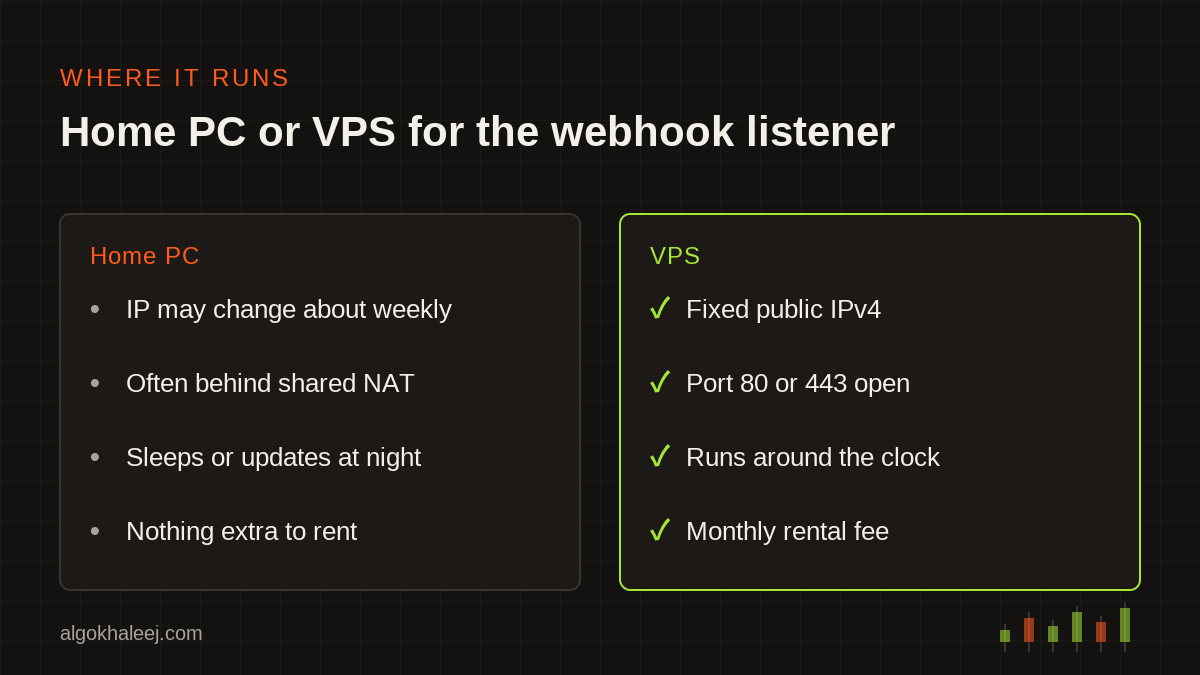
Delta’s docs warn that home and office ISPs may change your public IP roughly once a week, which breaks the whitelist. Many home lines also share one public address between users, so TradingView cannot reach your PC at all.
A small VPS with a static IPv4 address avoids both, and Delta’s docs recommend a static address for that reason. Our guide to running trading software on a VPS or a home PC compares the two setups.
Two ways to connect TradingView with Delta Exchange
Coding your own listener is the cheapest way to connect TradingView with Delta Exchange, though it takes time. Delta’s API docs and a small web server in Python or Node.js are enough to start. After that, the real work is symbol mapping, signing, bracket updates, repeat checks when Delta replies late, and clear logs.
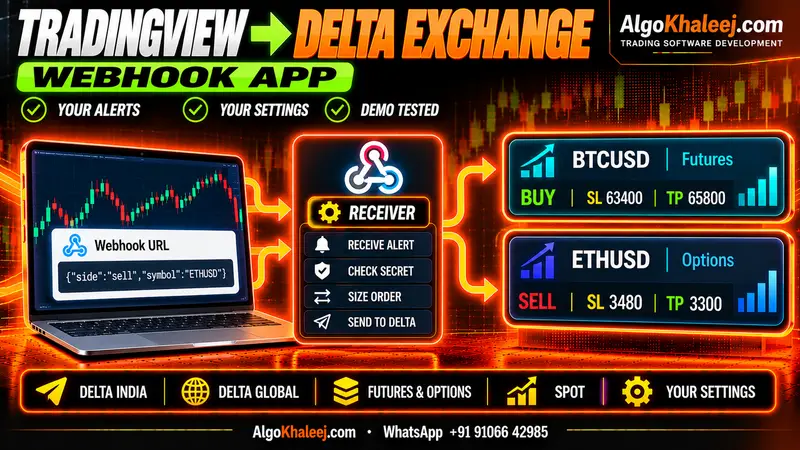
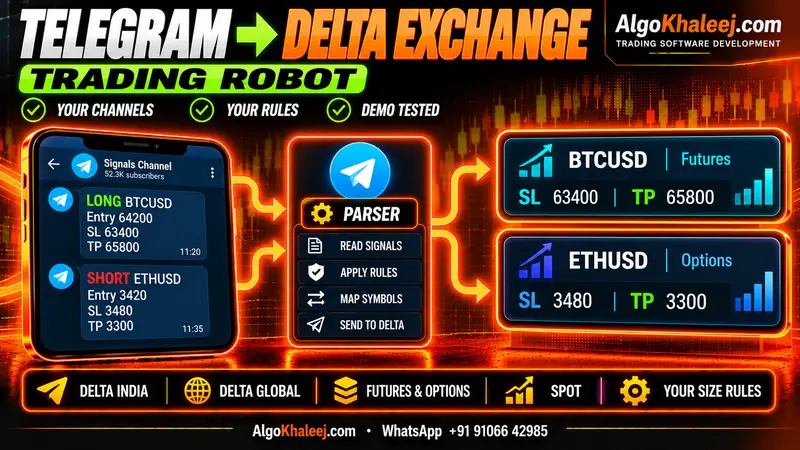
If you would rather not code, our Delta Exchange TradingView webhook app is one ready option for Windows. It writes the message for you and checks the sender, token and alert key before any order. For calls that come from Telegram channels instead of your own charts, see the Delta Exchange robot for Telegram signals.
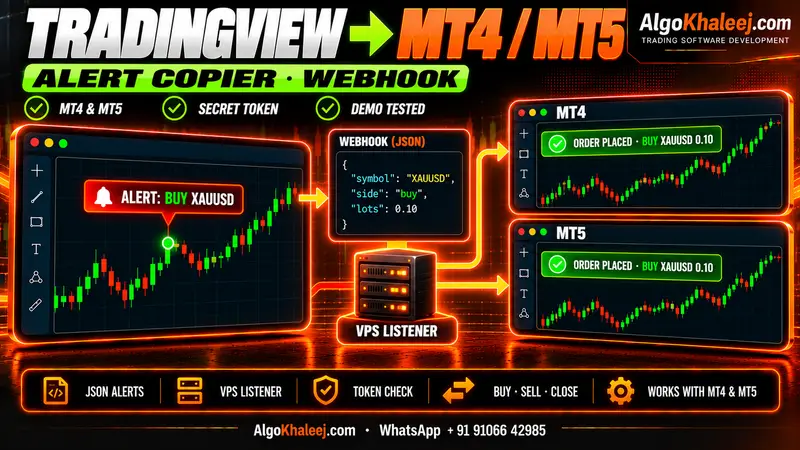
MetaTrader users can send the same kind of alert to MT4 or MT5 through our TradingView to MT4/MT5 copier. Our team works remotely from India.