Who this app is for
Your strategy lives on TradingView, but your account sits on Delta Exchange. So every alert means opening Delta, picking the contract and typing the size by hand. At 2 a.m. that rarely happens on time. Traders in the UAE and Saudi Arabia who ask us about this app usually have one of these setups:
- a Pine Script strategy that already fires buy and sell alerts,
- an indicator with separate alerts for entry and exit,
- two or more Delta accounts, each with its own size,
- a stop that must sit on the position as soon as it opens.
The app trades only the alerts you write, on accounts you own. We do not sell strategies or signals, so what trades remains your decision.
Futures, options and binary options are high risk products. Check that Delta Exchange and the product you use are allowed where you live.
What you need first
TradingView sends webhooks on paid plans only. Its help page also says webhook alerts need two-factor authentication on your TradingView account, so switch that on before anything else.
Next comes the machine. The app runs on Windows 10 or 11, 64-bit, and it needs a public IPv4 address, because TradingView does not post webhooks over IPv6. TradingView also accepts only ports 80 and 443. The app listens on port 80, so you open that port in Windows Firewall and in your router or VPS firewall too.
Finally, you need a Delta API key with Trading permission. We cover that step further down. For a longer look at how alerts travel to a home PC or server, read our TradingView to MT5 webhook guide.
How the alert reaches your PC
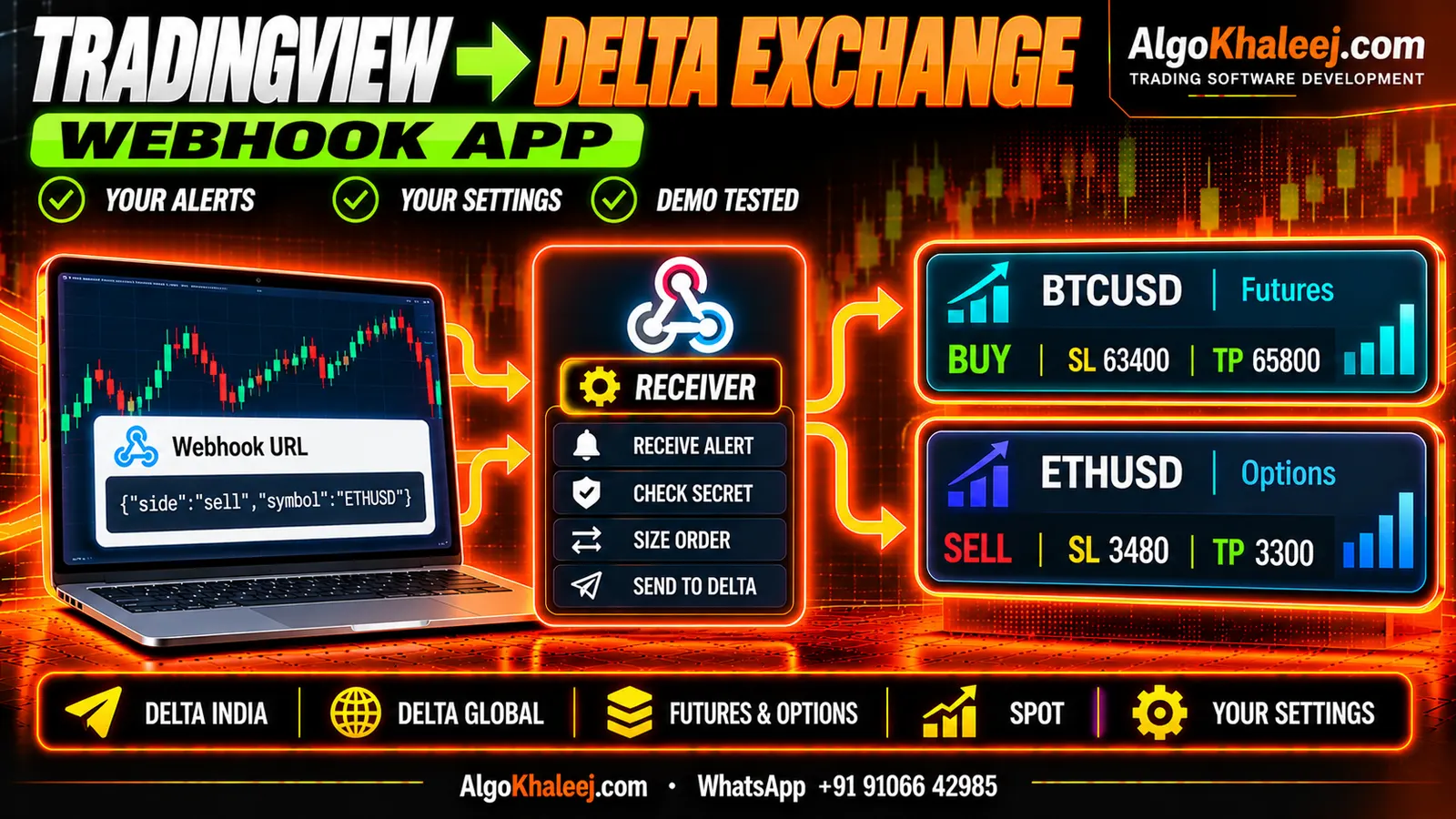
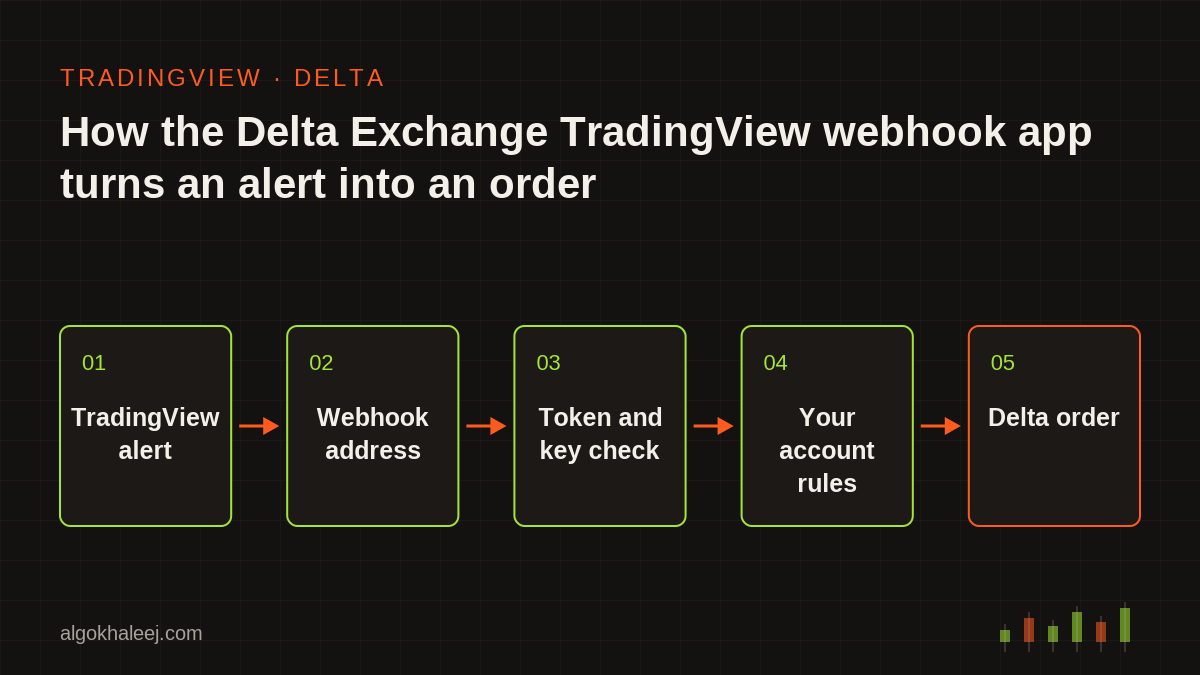
The app shows your alert address in this form:
http://YOUR-PUBLIC-IP/tv/YOUR-SECRET-TOKENA Copy button puts it on your clipboard. You then paste it into the Webhook URL box in TradingView’s alert settings. The long random token at the end works like a password, so keep the full address private.
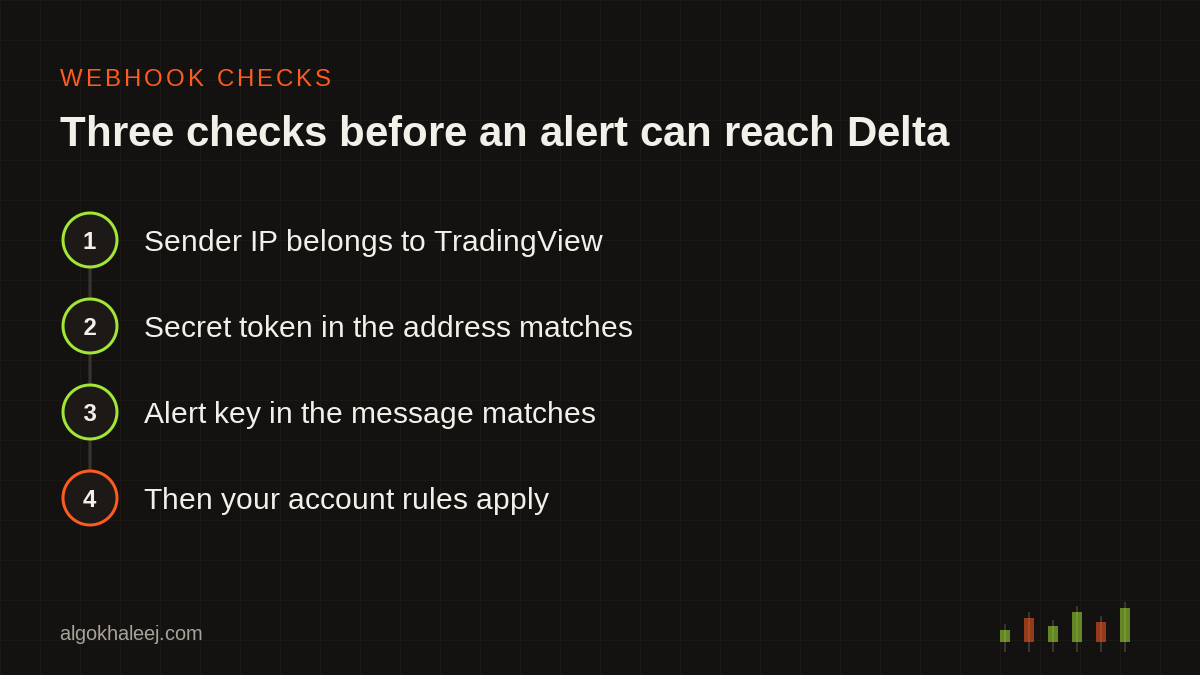
Three checks guard that address. First, the post must come from one of TradingView’s own webhook servers. Second, the token in the address must match. Third, the message must carry your alert key. If any check fails, nothing trades.
Only the alert address faces the internet. The dashboard where you add accounts and keys stays local on your machine. Also note that TradingView drops a webhook request when the server takes longer than three seconds, so the app has to be open when the alert fires.
Writing the Delta Exchange TradingView webhook message
The app uses no AI and guesses nothing. It reads each field exactly as written. Instead of typing the JSON yourself, you pick options in the app’s message builder, and it writes the text for you to paste into TradingView.
For example, a strategy alert for a perpetual could read:
{"key": "your-alert-key", "symbol": "{{ticker}}", "action": "{{strategy.order.action}}", "market": "perp", "qty": 10, "sl_pct": 1.5, "tp_pct": 3}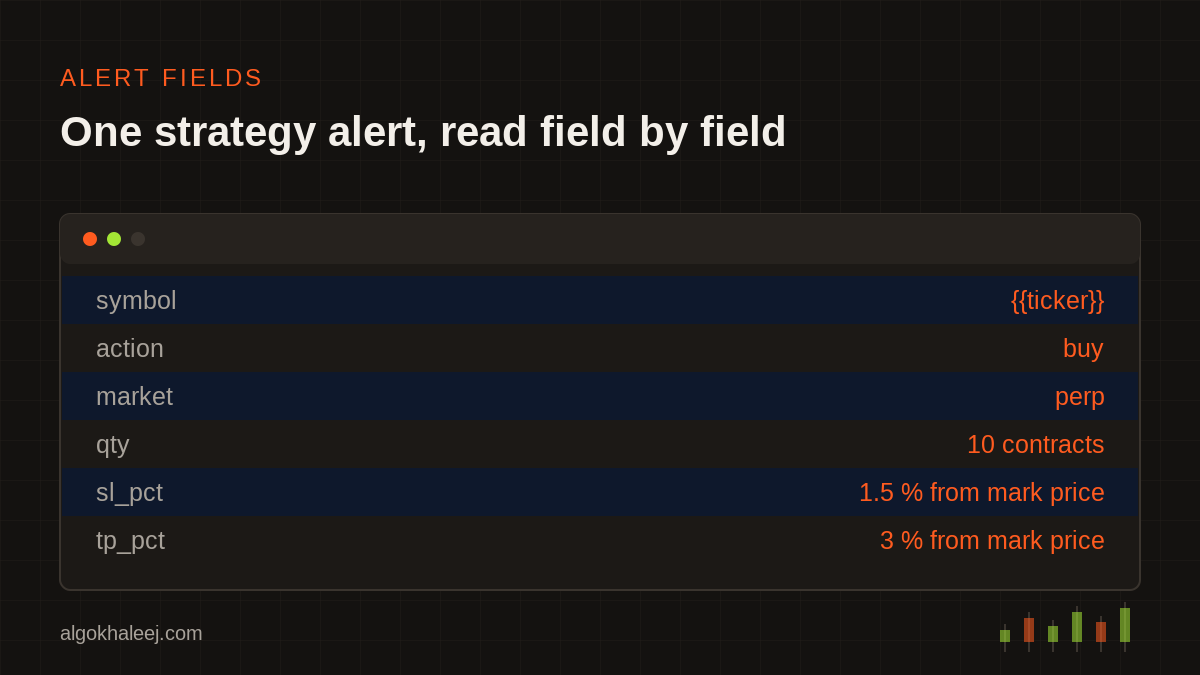
Here is what each field means:
| Field | What it holds |
|---|---|
| key | Your alert key, needed on every alert |
| symbol | Usually {{ticker}}; for options, MOVE and spot, the coin name such as BTC |
| action | buy or long, sell or short, close, closelong or closeshort |
| market | perp, options, move, spot or binary (optional) |
| qty | Contracts, or coins on spot (optional) |
| sl and tp | Stop and target as prices, for perpetuals |
| sl_pct and tp_pct | Stop and target as a percent from the mark price |
| option, strike, expiry | Call or put, a strike or atm, and a date as YYYY-MM-DD |
| account | One named account, or all of them |
When an alert leaves out the market or the size, each account falls back to its own setting. A field the app cannot read means no trade at all.
With {{strategy.order.action}}, TradingView fills in buy or sell each time your strategy places an order. As a result, one alert covers both directions. If your strategy still lacks alert code, our Pine Script developer page explains how we write it.
Delta markets an alert can trade
Each linked account trades one market by default, though an alert can name another for that single trade.
| Market | What an alert does |
|---|---|
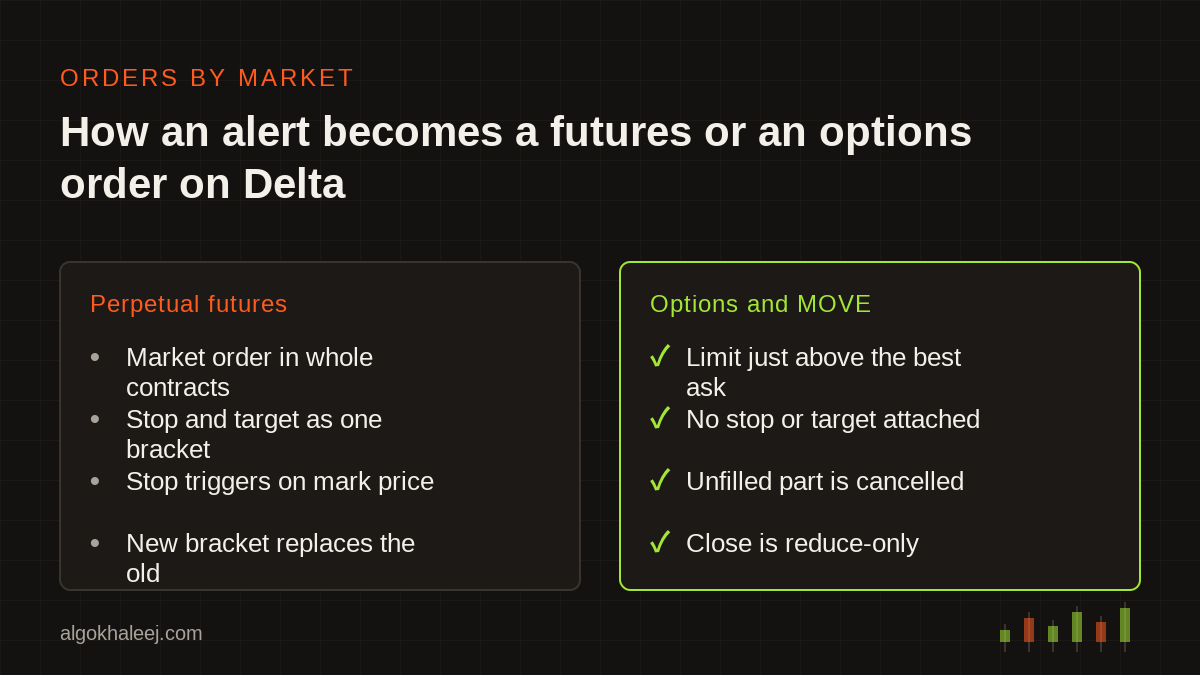
| Perpetual futures | Market order in whole contracts, with a stop and target bracket |
| Options | A buy alert takes a call, a sell alert a put, unless the alert names one |
| MOVE options | Buys the at the money contract, nearest expiry at least one hour out |
| Spot (Delta India INR pairs) | Spends your set rupee amount; a sell only sells what the app bought |
| Binary options (Delta Global only) | Binary call on buy, binary put on sell, next expiry |
On options, the strike defaults to at the money and the expiry to the nearest one at least 12 hours away. Buys go in as limit orders just above the best ask, inside Delta’s price band, and any unfilled part is cancelled. Closing uses a reduce-only limit just below the best bid. The app never writes options, so it cannot open a short option position.
Stops, brackets and closing
Only perpetual futures get a stop and a target. The app attaches them as one Delta bracket, and the stop triggers on the mark price. Delta’s API docs say a bracket covers the whole position, and only one is allowed per open position on a contract. Therefore, when a position already has a bracket, the app renews it rather than adding a second.
If Delta rejects the stop, the app closes the trade at once and logs the reason. Options, MOVE and spot trades get no stop or target, because a stop set on the coin’s price does not fit an option’s premium.
A close alert shuts the whole position at market and cancels its stop and target.
Delta API keys and several accounts
You create the API key on Delta yourself, with Trading permission switched on. Delta’s docs add two rules. First, a key with Trading permission needs at least one whitelisted IP, and calls from any other address fail. Second, a Delta India key works only on Delta India, and a demo key works only on the testnet.
The app shows the public IP to whitelist. After that, the key and secret stay on your PC and go only to Delta, and the screen shows just the last four characters of the key.
Each account then gets these settings:
- A name, the key and secret.
- Delta India or Delta Global.
- Demo (testnet) or Real.
- A default market and a size per trade.
- Leverage from 0 to 200x, where 0 keeps Delta’s own value.
Alerts never carry leverage, so the account figure always wins. If Delta refuses it, the order still goes in at the current leverage, and the journal notes that. Then the Check button reads the wallet balance, so you know the key works before the first alert.
Journal, repeat orders and Pause
Every alert leaves a line per account in the journal: side, size, contract, price, Placed or Not placed, and the reason. It also shows the milliseconds from the alert to Delta’s reply.
Sometimes Delta answers late. In that case the app looks the order up by its own ID before it tries again, so the same order never goes in twice. Meanwhile, a Pause button stops all new orders until you resume.
Running the Delta Exchange TradingView webhook on Gulf time
Delta futures trade around the clock, and many strategies fire overnight. An alert at 02:00 UAE time (UTC+4) is 01:00 in Riyadh (UTC+3), when most home PCs sleep. The app takes alerts only while its window is open.
Home lines bring two more problems for a Delta Exchange TradingView webhook. Many sit behind carrier-grade NAT, which shares one public address between users, so webhooks cannot reach the PC. Delta’s docs also warn that some internet providers change your IP about once a week, which breaks a whitelisted key. For these reasons, a small Windows VPS with a fixed IP is the safer home for the app.
How to get the app
Send us your Delta site, markets, account count and how your alerts are built on WhatsApp. We then reply with a quote and help with the port, the key and your first demo alert. Our team works remotely from India.
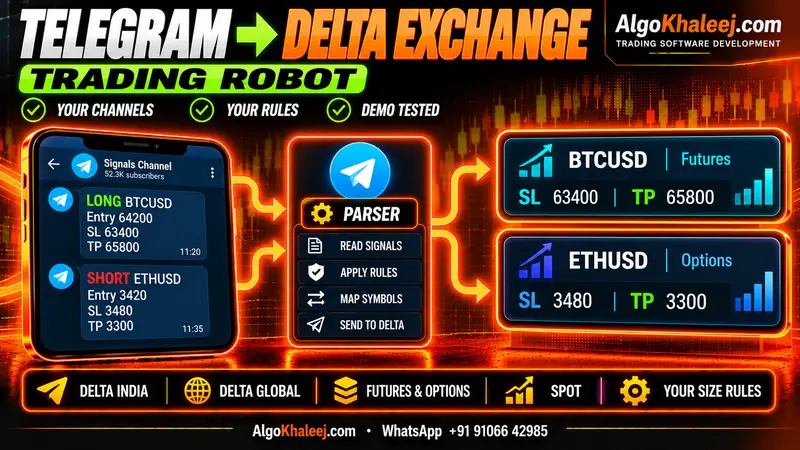
The Tools page lists our other ready apps. If your calls come from Telegram channels instead, see the Delta Exchange robot for Telegram signals.